CX File Explorer FAQs | Ultimate Android & PC Guide
Discover CX File Explorer features, tips, and troubleshooting. Learn how to manage files, apps, and cloud storage efficiently.
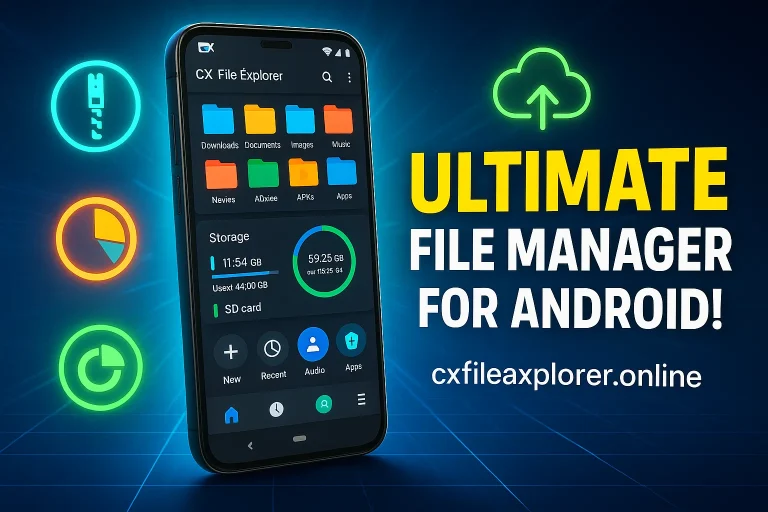
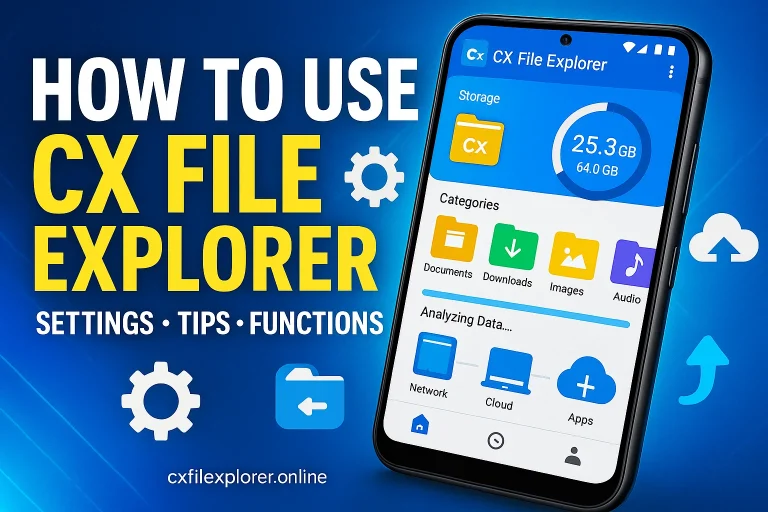
Cx File Explorer is a powerful and user-friendly file manager for Android devices. It helps you organize files, manage apps, and analyze storage easily. With its storage analysis tools, you can see which files or apps are using the most space and free up memory to keep your device running smoothly. Whether you’re a beginner or an advanced user, this app makes file management simple and efficient.
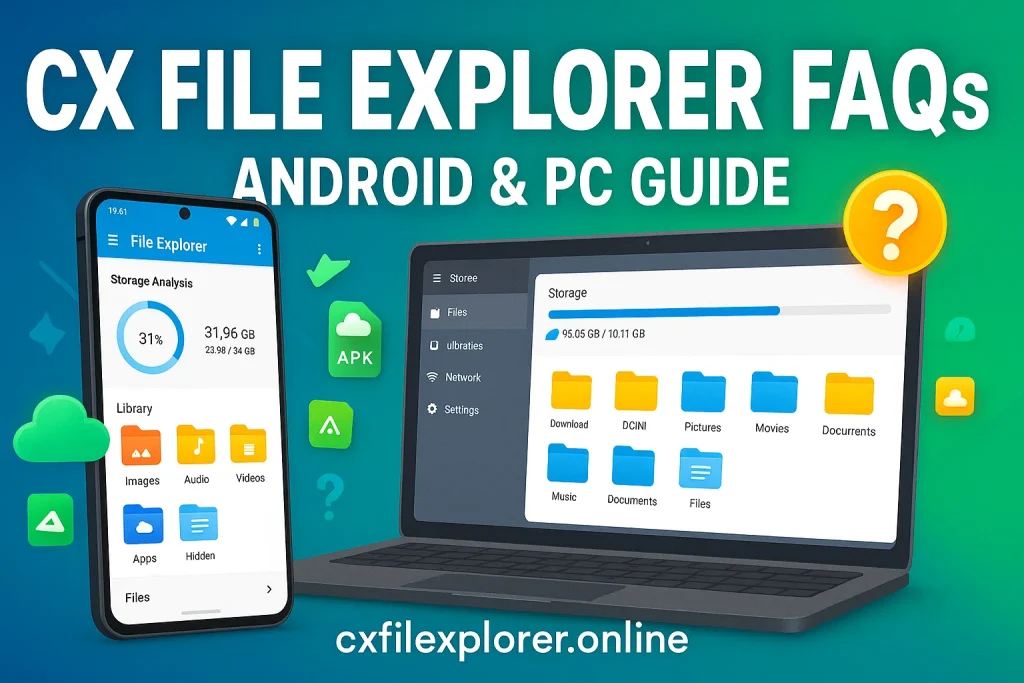
Many users have questions about how to use Cx File Explorer effectively, like managing cloud storage, APKs, or hidden files. In this guide, we’ve answered the most common FAQs so you can protect your device memory, save time, and make the most out of this app.
What is Cx File Explorer?
Cx File Explorer is a smart and versatile file manager designed for Android devices. It makes organizing files, managing apps, and analyzing storage extremely simple, even for beginners. With its clean and intuitive interface, users can move, copy, delete, and sort files effortlessly. What sets it apart is its ability to analyze both internal and external storage, helping you spot large or unused files and free up space without hassle.
This app has gained popularity worldwide because it combines powerful features with ease of use. From managing cloud storage to handling APKs and hidden files, Cx File Explorer offers tools that many other file managers don’t. Its lightweight design and free availability make it a top choice for anyone looking to keep their device organized and running smoothly.
Learn How to get Cx File Explorer on Oculus (Meta) Quest 2?
How do I download and install Cx File Explorer?
Downloading and installing Cx File Explorer is very simple and free. You can get it directly from the Google Play Store or download the APK file from the official website. Once installed, the app will request certain permissions to function properly—don’t worry, these are safe and only needed for file management, storage access, and app handling.
If you want to use Cx File Explorer on a PC, you’ll need an Android Emulator like BlueStacks or MEMU. This allows you to run the app just like on an Android device. However, there is no iOS version available, so iPhone users will need to look for alternative file managers to enjoy similar features.
Can I use Cx File Explorer on iOS devices?
Unfortunately, Cx File Explorer is not available for iOS devices. The app is specifically designed for Android and works best on smartphones and tablets running the Android operating system.
If you’re using an iPhone or iPad, you’ll need to look for alternative file manager apps that offer similar features like file organization, storage analysis, and app management. Popular iOS alternatives include apps like Documents by Readdle or File Manager & Browser, which provide many of the same tools to keep your device organized and efficient.
What types of files can I manage with Cx File Explorer?
With Cx File Explorer, you can manage almost any type of file on your Android device. This includes documents, images, videos, music, PDFs, and APK files. Whether it’s a photo you want to move, a video to delete, or a PDF to share, the app makes it easy with simple drag-and-drop and sorting options.
Beyond the basics, you can also handle compressed files like ZIP and RAR, and organize folders efficiently. If you use cloud storage services like Google Drive or Dropbox, Cx File Explorer can even manage your online files, making it a complete solution for all your file management needs. It’s perfect for both beginners and advanced users who want to keep their devices organized.
Can I manage apps and APKs with Cx File Explorer?
Yes! Cx File Explorer is not just for files—it also allows you to manage your apps and APKs easily. You can check app storage usage, clear cache, and remove junk files to free up memory. It also lets you move apps to different folders or storage locations, making it simple to organize your device.
For advanced users, the app provides detailed insights into each application, such as data usage and memory consumption. Compared to other file managers, Cx File Explorer gives a more comprehensive control over apps, so whether you want to optimize performance or backup APKs, everything is just a few taps away.
Does Cx File Explorer support cloud and network storage?
Yes, Cx File Explorer fully supports cloud and network storage, making it easy to manage files across devices. You can connect to popular cloud services like Google Drive, Dropbox, OneDrive, and Box, allowing you to upload, download, and organize files directly from the app.
Additionally, Cx File Explorer can link to network storage devices using FTP, SMB, or WebDAV protocols. This means you can access files on other computers, servers, or NAS devices without moving them manually. With these features, the app becomes a complete file management solution for both local and online storage, saving time and keeping your data organized.
How does the Storage Analysis feature help?
The Storage Analysis feature in Cx File Explorer is a powerful tool that helps you understand how your device’s memory is being used. It scans your internal storage and SD cards to show which files, apps, or media are taking up the most space. This makes it easy to identify large or unnecessary files and free up memory quickly.
It also categorizes your files into types like videos, images, documents, and APKs, giving a clear overview of your storage usage. For busy devices with lots of data, this feature helps you optimize space, improve device performance, and prevent slowdowns. Simply put, it’s like having a smart organizer for all your files and apps.
Read Best CX File Explorer Features 2025
Is Cx File Explorer safe and secure to use?
Yes, Cx File Explorer is a safe and secure app for managing files on Android devices. It does not contain viruses or malware, and your personal data remains private. The only thing to keep in mind is to download the app from trusted sources, like the Google Play Store or the official website, to avoid any potential risks.
Because Cx File Explorer is mostly offline, it won’t share your files or information without your permission. This makes it a reliable choice for both beginners and advanced users who want to manage files, apps, and storage without compromising device security or privacy.
What should I do if Cx File Explorer stops working or crashes?
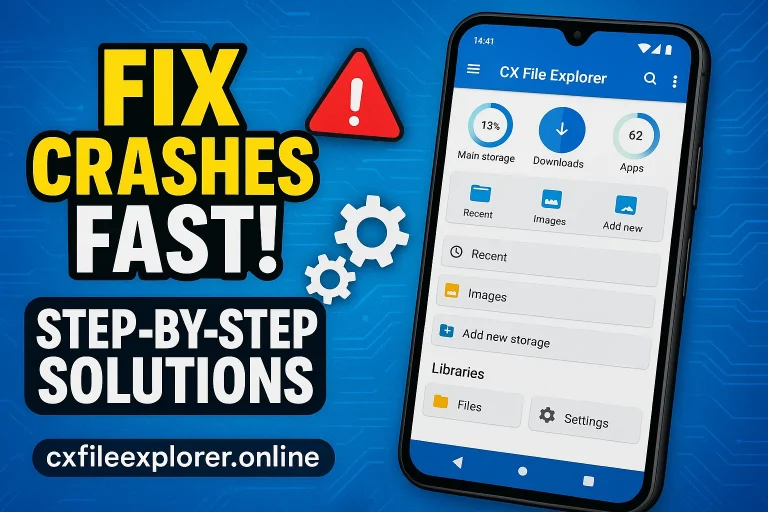
If Cx File Explorer stops working or crashes, don’t worry—it’s usually easy to fix. First, check if there’s a new update available on the Google Play Store. Running an outdated version of the app can cause crashes or glitches, so installing the latest version often resolves the issue.
If updating doesn’t help, try restarting your device. Many temporary glitches are caused by system memory or background apps, and a restart can clear these problems. For persistent issues, you can also clear the app cache or reinstall Cx File Explorer to restore smooth performance. These simple steps usually fix most problems quickly and safely.
Can I access hidden or system folders using Cx File Explorer?
Yes, Cx File Explorer allows you to access hidden and system folders, but it’s important to be careful. These folders contain critical system files that control how your Android device works, so deleting or modifying them without knowledge can cause issues.
The app makes it easy to view hidden files by enabling the “Show Hidden Files” option in settings. This is helpful if you want to recover lost files, manage system folders, or organize app data. For advanced users, this feature provides greater control over the device’s storage, but beginners should explore carefully to avoid accidental changes.
Do I need a user account to use Cx File Explorer?
No, you don’t need a user account to use Cx File Explorer for most of its features. You can browse files, manage apps, analyze storage, and organize folders without signing in.
Creating an account is only useful if you want to use advanced features like FTP file transfers between devices. So unless you plan to move files over a network, the unregistered version works perfectly and gives you full access to all core features safely and efficiently.
Are there any limitations for free users?
For most users, the free version of Cx File Explorer is fully functional and provides access to all essential features like file management, storage analysis, app handling, and cloud storage access. You can organize your device efficiently without paying a dime.
The only minor limitation is that some advanced features, like certain network tools or FTP transfers, may require optional permissions or additional setup. But for everyday use, free users can enjoy a safe, smooth, and complete file management experience without restrictions.
How often is Cx File Explorer updated?
Cx File Explorer is regularly updated by its developers to ensure the app stays secure, fast, and compatible with new Android versions. Updates usually happen every few weeks or months, depending on new features, bug fixes, or performance improvements.
Keeping the app updated is important because it ensures smooth file management, access to the latest tools, and protection against potential bugs. By regularly checking the Google Play Store for updates, you can make sure your Cx File Explorer runs efficiently and safely at all times.
Why Cx File Explorer is considered one of the best file managers
Cx File Explorer is considered one of the best file managers because it combines simplicity, speed, and powerful features in a single app. You can manage files, apps, cloud storage, and network drives all in one place, without any complicated setup. Its Storage Analysis tool, hidden file access, and APK management give users greater control over their devices.
Another reason is its lightweight design and smooth interface, which makes it suitable for both beginners and advanced users. Unlike many other file managers, it focuses on security, privacy, and efficiency, allowing you to organize files safely and quickly. Overall, Cx File Explorer is a complete solution for keeping your Android device organized and optimized.
Conclusion
In conclusion, Cx File Explorer is a powerful and user-friendly file manager that stands out for its speed, security, and versatility. Whether you want to organize files, manage apps, access cloud storage, or analyze your device memory, this app offers a complete solution.
With its intuitive interface and advanced tools, even beginners can navigate it easily, while experienced users can take full advantage of features like hidden folders access, FTP transfers, and storage optimization. If you’re looking for a safe, reliable, and efficient way to manage your Android device, Cx File Explorer is definitely worth choosing. It’s not just a file manager—it’s a smart companion for keeping your device organized and optimized.