CX File Explorer Troubleshooting Guide | Quick Fixes
Solve CX File Explorer issues fast! Step-by-step fixes for crashes, file errors, network problems and installation glitches.
When you rely on CX File Explorer every day to manage your documents, media and storage, even a small glitch can slow down your entire workflow. Over the past few months, I’ve personally tested the app across different devices and noticed that many users face similar problems app crashes, network access issues, files not showing, or storage permissions not working.
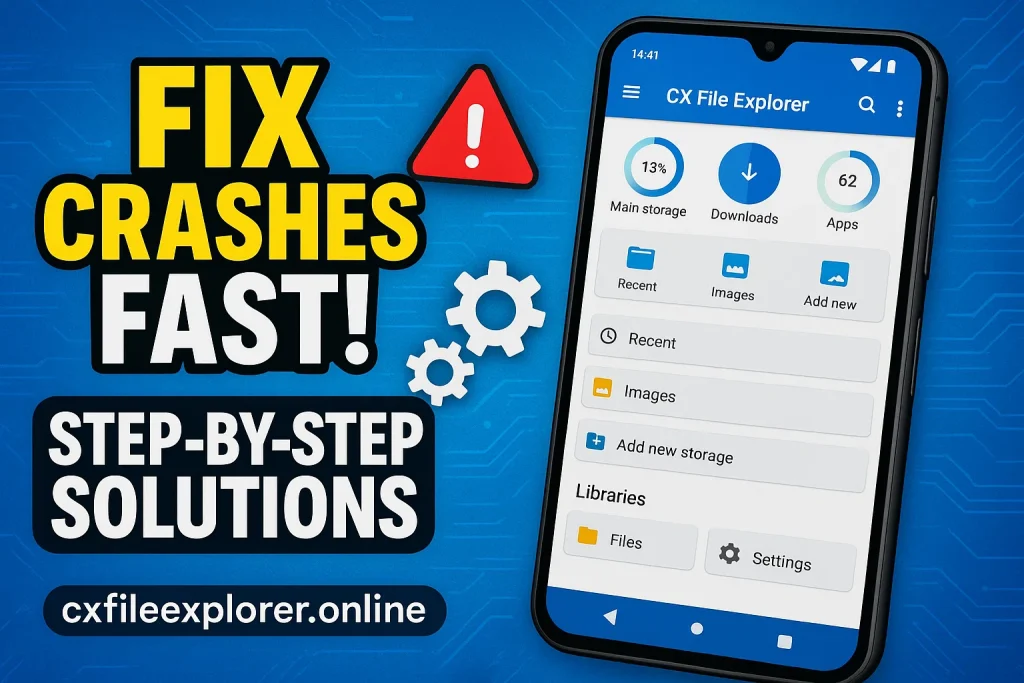
That’s why I decided to put together this practical troubleshooting guide. Instead of giving you generic fixes, I’ve compiled real user issues, identified the root causes and created clear, beginner-friendly solutions that actually work. Whether your CX File Explorer is not opening, keeps stopping, or can’t detect files, this guide will help you fix the issue without wasting your time.
And here’s the best part, every fix below is explained in simple English, with step-by-step instructions, so even if you’re not tech-savvy, you’ll sort things out quickly. Still didn’t find the exact issue you’re struggling with? No worries, just drop me a message and I’ll update this guide with a fix.
Let’s begin and solve the most common CX File Explorer problems one by one.
For more guide read our blogs:
- How to Transfer Files Wirelessly Using CX File Explorer (Complete 2025 Guide)
- Cx File Explorer vs. Solid Explorer: Ultimate Comparison 2025
What Causes CX File Explorer Issues?
Most problems in CX File Explorer come from a few common sources that affect how the app runs. Once you understand what’s triggering the issue, finding the right fix becomes much easier.
Common App Bugs and Glitches
Small software bugs, unexpected glitches, or temporary app errors can cause CX File Explorer to behave abnormally. These issues often appear after an update or when certain internal files get corrupted. You might see random freezes, slow loading, or features not responding.Most of the time, updating or refreshing the app clears these minor problems.
Device Storage or RAM Limitations
When your device has low storage, limited RAM, or too many apps running, CX File Explorer may slow down. Large folders can take longer to load and the app may even crash under heavy usage. Older or budget devices face this issue more frequently because of hardware limits. Freeing up space and closing background apps usually brings the performance back to normal.
Permission-Related Problems
CX File Explorer needs proper storage permissions, file access and media access to work correctly. If these permissions are disabled or partially denied, the app won’t show files or open certain folders. You may also face errors while moving or deleting data.A simple permission reset often fixes the problem instantly.
Basic Troubleshooting Before You Start
Before jumping into advanced fixes, it’s smart to run a few quick checks that solve most CX File Explorer problems instantly. These simple steps help you rule out minor issues and ensure the app is running in the right environment.
Check Your Android Version
CX File Explorer works best on devices running a stable Android version with up-to-date system files. If your Android is outdated, it may cause compatibility issues or slow performance. Go to Settings and verify that your phone has the latest updates installed.Sometimes, even a small system patch can fix unexpected glitches in the app.
Ensure App Has Required Permissions
For smooth performance, CX File Explorer must have access to Storage, Files and Media Permissions. If any permission is disabled, the app won’t load folders or may show empty directories. Visit your App Settings and confirm that every required permission is turned on. Once granted, the app usually detects your files immediately without errors.
Restart the Device and App
A simple restart can refresh your system’s RAM, clear temporary bugs and fix random freezes. Close CX File Explorer completely, then relaunch it to rebuild its session.If the issue persists, restart your device to reset background processes. This quick step often resolves problems caused by temporary system conflicts.
How to Fix CX File Explorer Not Opening
When CX File Explorer refuses to open, the issue is usually linked to a minor system conflict or outdated app data. These quick fixes help you refresh the app and restore normal functionality without digging into advanced settings.
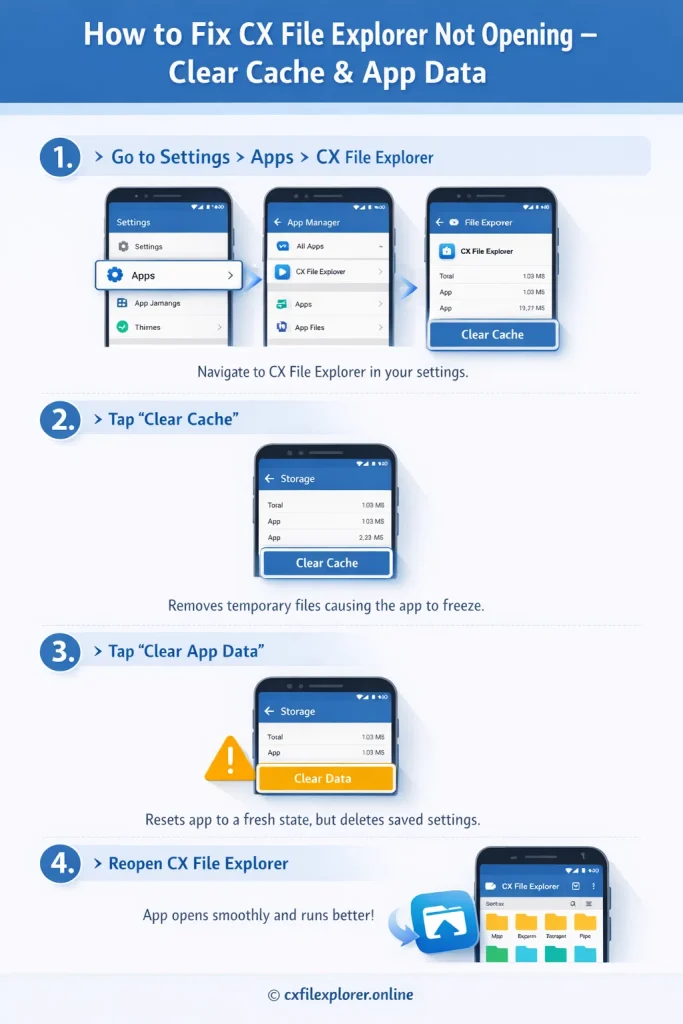
Clear Cache and App Data
- Open Android Settings and go to Apps or Application Manager.
- Find CX File Explorer in the list of installed apps.
- Tap Storage and select Clear Cache to remove temporary files that may block the app from opening.
- If the issue continues, choose Clear App Data to reset corrupted settings.
- Reopen CX File Explorer APK so it can rebuild fresh configurations and restore smooth performance.
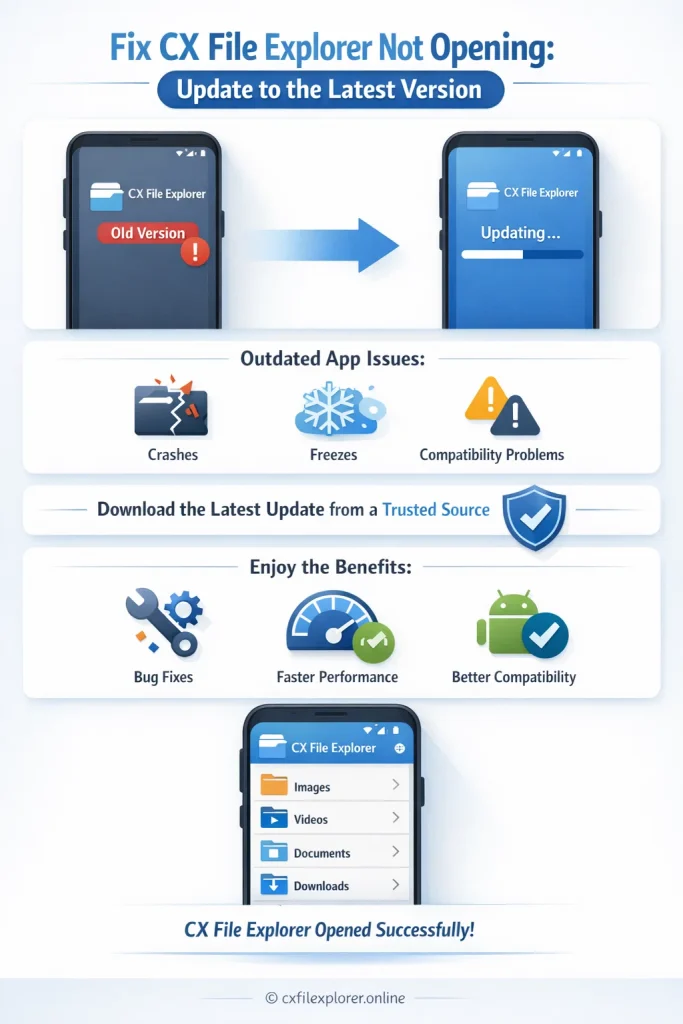
Update to the Latest Version
- Using an outdated file manager app can cause crashes on newer Android versions.
- Visit a trusted source to download the latest CX File Explorer update.
- Install the newest version to benefit from bug fixes, performance improvements and better Android compatibility.
- Updated builds are more stable and often fix CX File Explorer not opening issues instantly.
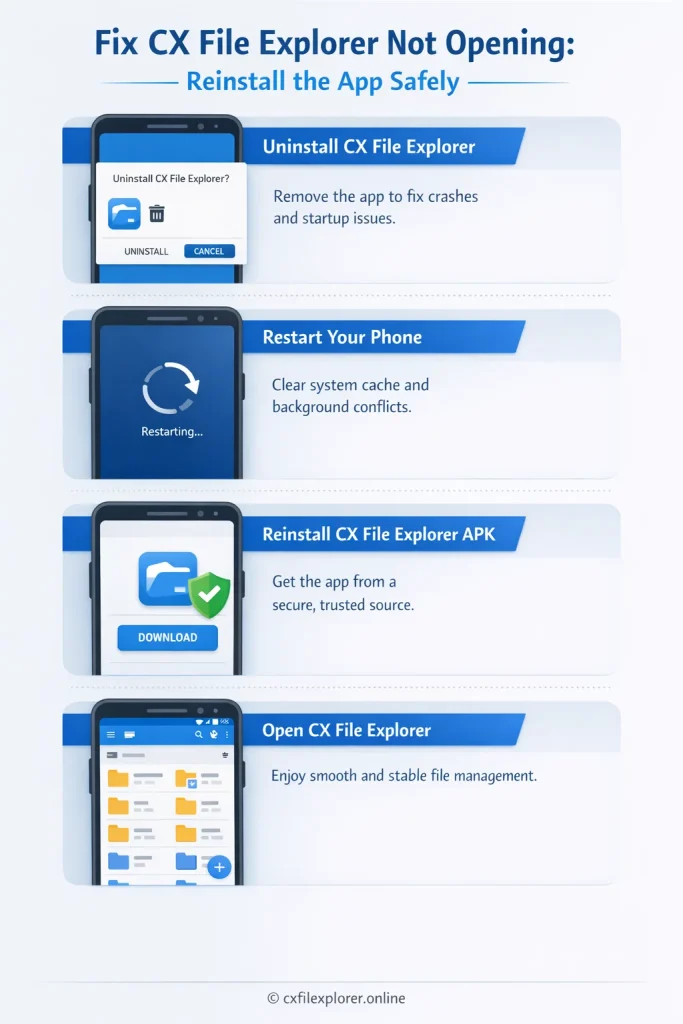
Reinstall the App Safely
- If CX File Explorer keeps crashing, uninstall the app completely from your device.
- Restart your phone to clear leftover system cache and background conflicts.
- Reinstall the official CX File Explorer APK from a secure source only.
- A clean install removes hidden corrupted files and restores proper file management functionality.
Fix CX File Explorer Crashing or Freezing
When CX File Explorer keeps crashing or freezing, it’s usually because your device is overloaded or the app is struggling with heavy tasks.These targeted fixes help stabilize the app and restore smooth performance without technical complexity.
Remove Excess Storage Junk
When your phone is filled with too many temporary files, cache, or unnecessary data, CX File Explorer may slow down or freeze.Clearing storage space gives the app more breathing room to process your files properly.Try deleting old downloads, large videos, or unused apps to free up memory.Once storage is optimized, the app typically runs faster and more smoothly.
Disable Battery Optimization for the App
Battery optimization can restrict CX File Explorer’s background activity, causing it to freeze mid-task.Turning off battery optimization allows the app to work freely without being forced to close.You can disable this from App Settings under Battery or Power Management.After this change, the app usually handles file operations more reliably.
Scan for Corrupted Files
Sometimes a single corrupted file or damaged folder triggers crashes the moment you try to open it.Scanning your storage helps you identify files that aren’t readable or are partially broken.Deleting or moving these problematic files often prevents app freezes.This simple check protects both your device and the app from repeated errors.
Solutions for CX File Explorer Not Showing Files
If CX File Explorer isn’t displaying your files or folders, the issue usually comes from restricted access or a simple display setting. These quick, beginner-friendly fixes help you restore full visibility of your documents, photos and storage instantly.
Enable Storage Access Permission
Without proper Storage Access Permission, CX File Explorer can’t read your internal files or SD card content.Go to App Settings and make sure File Access and Media Permissions are fully enabled.Once permission is granted, the app immediately refreshes your storage structure.This single step fixes most cases where files suddenly disappear or directories look empty.
Refresh Directory or Rebuild Index
Sometimes CX File Explorer doesn’t update its file index, causing new or moved files to stay hidden.Refreshing the directory forces the app to reload your storage map from scratch.If the issue persists, rebuilding the index helps correct outdated or incomplete folder information.This simple refresh often makes missing files reappear within seconds.
Check Hidden Files and Folder Settings
Your files may be marked as Hidden, so the app won’t display them unless the option is enabled. Open the app’s View or Display menu and turn on the Show Hidden Files setting. This helps uncover folders created by apps, system processes, or previous backups. After enabling it, many users instantly find files they thought were deleted.
Fix Network Access Issues in CX File Explorer
Network problems in CX File Explorer often prevent access to FTP servers, shared folders, or cloud storage.By understanding common connectivity issues, you can restore smooth file transfers and access without frustration.
Problems With FTP Connection
If your FTP connection keeps failing, it might be due to incorrect login credentials or server settings. Double-check your username, password and port number to ensure they match the server requirements. A firewall or antivirus on your device can also block FTP access, so consider temporarily disabling them. Once configured correctly, CX File Explorer should connect seamlessly to the server every time.
Shared Folder Not Loading
Sometimes shared folders on your network don’t appear because of permission restrictions or outdated network paths. Ensure that the shared folder is accessible from other devices on the same network. Update the folder path in CX File Explorer and check that your device has proper read/write permissions. Refreshing the connection usually makes the folder load without any further issues.
Wi-Fi Configuration Issues
A weak or misconfigured Wi-Fi can prevent CX File Explorer from connecting to network drives or servers. Check that your device is connected to the correct network and that the signal strength is stable. Sometimes restarting your router or reconnecting the device resolves temporary network glitches. Proper Wi-Fi settings ensure consistent access to all network locations within the app.
Fix CX File Explorer APK Installation Errors
Sometimes installing or updating CX File Explorer APK can fail due to device restrictions or incompatible versions. These simple solutions help ensure a smooth installation process and prevent common APK errors.
App Not Installing
If CX File Explorer fails to install, it may be blocked by your device’s security settings. Enable Unknown Sources or allow installation from third-party apps in your Android settings. Also, ensure your device has enough free storage for the APK to install correctly. After adjusting these settings, the app should install without any interruption.
Parse Error Solutions
A Parse Error occurs when the APK is corrupted or doesn’t match your device’s architecture. Download the APK only from trusted sources (Cxfilexplorer.online) to avoid damaged or unsafe files. Sometimes, a simple re-download fixes the problem immediately. Ensuring the APK version is compatible with your Android OS is key to avoiding parse errors.
Fixing Incompatible Version
If the APK version is not compatible with your device, it will refuse to install.Check the minimum Android version required for the APK before downloading. Installing an older or beta version may solve compatibility issues temporarily.Always choose a stable, officially supported version to prevent crashes and errors.
CX File Explorer Not Deleting or Moving Files
If you can’t delete or move files in CX File Explorer, the problem is usually due to permissions or storage restrictions. These simple fixes help you regain full control over your folders and files without any hassle.
Fix Permission Denied Errors
Permission Denied errors happen when the app lacks proper storage or file access permissions.Go to App Settings and enable read/write permissions for CX File Explorer. Once permissions are granted, you can freely move, copy, or delete files. This step resolves most common file management issues instantly.
Free Up Storage Space
Low device storage can prevent files from moving or being deleted properly. Check your internal and SD card storage and delete unnecessary files, cache, or large downloads.
Freeing up space ensures smoother file operations and prevents app freezes.After optimizing storage, CX File Explorer works faster and handles tasks without errors.
Remove Folder Restrictions
Some system or app-created folders may have read-only restrictions, stopping you from editing them. Check folder properties and ensure you have the right permissions to modify or delete contents. For protected folders, move files to another location or adjust security settings. Once restrictions are removed, you can manage your files freely without hitting errors.
Advanced Troubleshooting Tips
When basic fixes don’t work, it’s time to dive into advanced troubleshooting for CX File Explorer.
These steps help uncover hidden issues and restore smooth performance without risking your device.
Check App Logs
- Some versions of CX File Explorer provide app logs that record errors and crashes.
- Checking these logs can help you identify which files, folders, or processes are causing the problem.
- Even a quick glance may reveal permission issues or corrupted directories.
- This insight makes targete d fixes faster and prevents repeated errors.
Use Safe Mode to Detect Conflicts
- Boot your device in Safe Mode to disable third-party apps and background processes.
- If CX File Explorer works fine in Safe Mode, the issue likely comes from another app or service.
- You can identify the conflicting app and either uninstall it or adjust its settings.
- Safe Mode is a simple and effective way to troubleshoot persistent crashes or freezes.
Try an Older or Beta Version
- Sometimes the latest CX File Explorer update may introduce bugs or compatibility issues.
- Testing an older stable version or official beta can help determine if the problem is version-specific.
- Always download from trusted sources to avoid malware or corrupted APKs.
- Switching versions temporarily often restores full functionality while waiting for official fixes.
When to Consider Alternatives
If CX File Explorer continues to give issues despite all troubleshooting, it may be time to explore alternative file manager solutions. Knowing your options ensures uninterrupted access to files and smooth device management.
Temporary File Manager Options
Sometimes using a temporary file manager can help you access, move, or organize files while CX File Explorer is down. Apps like Solid Explorer, X-plore File Manager, or Files by Google are reliable alternatives. These apps offer basic file operations and often run smoothly even on low-end devices.Switching temporarily ensures you don’t lose productivity while you work on fixing the main app.
What to Do if the Issue Persists
If problems persist even after updates, reinstalling and advanced troubleshooting, it may indicate a deeper compatibility or system issue.You can contact the official CX File Explorer support or check forums for similar experiences. Backing up your files and considering a stable alternative is a safe way to prevent data loss. Sometimes, waiting for a new official update or patch resolves persistent bugs naturally.
Also Read: How to get Cx File Explorer on Oculus (Meta) Quest 2?
Frequently Asked Questions
For more FAQs: CX File Explorer FAQs | Ultimate Android & PC Guide
Final Thoughts
In this guide, we covered the most common CX File Explorer issues, including crashes, freezing and missing files.You’ve learned practical fixes like clearing cache, granting storage permissions and reinstalling APKs. Advanced troubleshooting tips, network fixes and temporary alternatives were also discussed. By following these steps, most problems can be solved quickly without technical hassle.
CX File Explorer is a powerful file manager, but like any app, it can face occasional glitches. Its user-friendly interface and versatile tools make it a top choice for Android users. However, device limitations or outdated versions can sometimes affect performance. Balancing proper maintenance and updates ensures the app runs smoothly over time.
If you encounter persistent issues, don’t hesitate to contact CX File Explorer support or visit forums for guidance. Sharing your experience and solutions helps others facing similar problems. Feel free to comment below with questions or tips for troubleshooting.Your feedback ensures a better experience for everyone using the app.