Cx File Explorer vs. Solid Explorer: Ultimate Comparison 2026
Compare Cx File Explorer and Solid Explorer in this powerful 2026 guide. Discover features, pros, cons, pricing and the best app for your needs.
Choosing between Cx File Explorer and Solid Explorer can feel confusing, especially when both apps promise smooth file control. But the truth is, each app has its own strengths. Cx File Explorer is known for its lightweight performance, clean layout, and quick file access, which makes it perfect for people who just want a simple yet powerful tool. On the other hand, Solid Explorer offers more advanced file management features, but those options can feel overwhelming if you’re new to file managers. So before you decide, it’s important to know what kind of user you are and how much complexity you’re comfortable with.
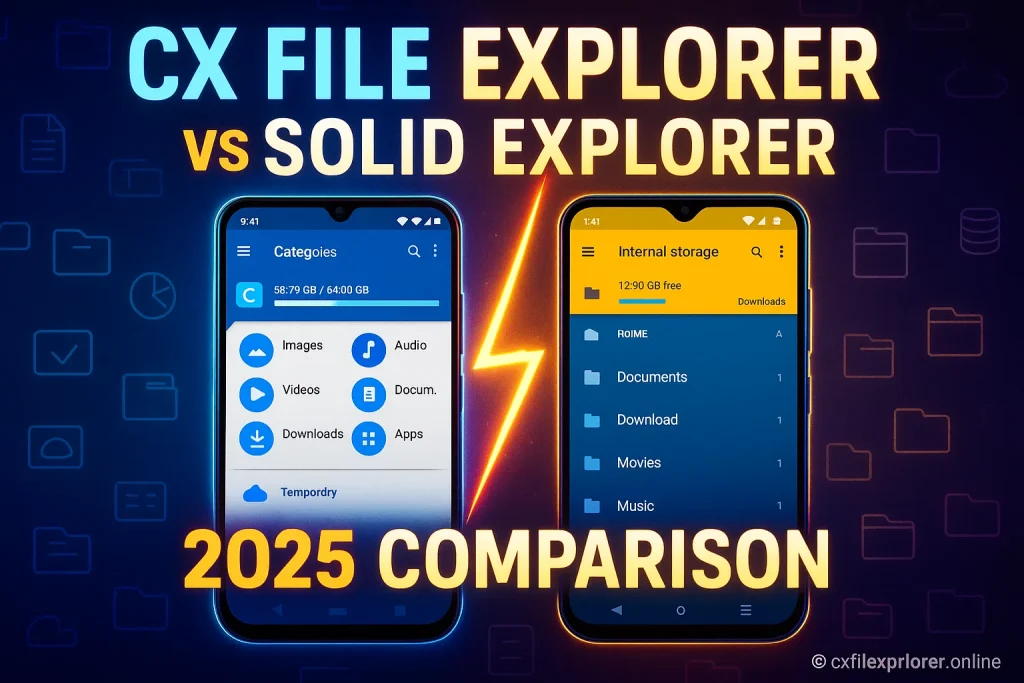
When I tested both apps on different devices, I clearly noticed how differently they handle everyday tasks. Cx File Explorer loads folders almost instantly and doesn’t slow down older phones, which shows its focus on speed and low resource usage. Meanwhile, Solid Explorer gives you stronger customization and security options, but it may use more RAM and battery. That’s why this comparison will help you understand which app actually fits your routine whether you need a fast and simple file manager or new feature packed one with deeper controls. Let’s break everything down in the simplest and most honest way.
Overview: Cx File Explorer and Solid Explorer
Choosing between Cx File Explorer and Solid Explorer becomes much easier when you understand their purpose, strengths, and the kind of user each one is built for. Both apps are designed to help you manage your files smoothly, but the experience they offer is completely different.
What is Cx File Explorer?
Cx File Explorer is a lightweight file manager that focuses on speed, clean design, and easy navigation, making it ideal for beginners and casual users. It helps you manage your photos, videos, documents, and app files without slowing down your device. With features like storage analysis and quick folder access, it offers a balanced mix of simplicity and smart functionality.
What is Solid Explorer?
Solid Explorer is a more advanced file manager built for users who want deeper control, customization, and stronger security. It includes dual-pane browsing, encryption options, and flexible cloud storage support. Though it’s powerful, its layout and feature set may feel heavy for those who prefer a simple, minimal interface.
Comparison Table: Cx File Explorer vs Solid Explorer (2026)
| Feature / Category | Cx File Explorer | Solid Explorer |
|---|---|---|
| User Interface | Simple, clean, beginner-friendly | Modern dual-pane UI, more advanced |
| Ease of Use | Very easy for new users | Requires learning for advanced functions |
| File Management Tools | Basic + advanced tools (copy, move, compress, analyze storage) | Highly advanced tools (dual pane, drag-and-drop, plugins) |
| Cloud Storage Support | Supports Google Drive, Dropbox, OneDrive, FTP, SMB | Supports all major cloud services + WebDAV and more |
| Security Features | Safe, no unnecessary permissions | Strong security: AES encryption for files & folders |
| Performance & Speed | Lightweight, fast, low resource usage | Fast but heavier on CPU & RAM |
| Compatibility | Android only | Android only |
| PC Support | Works via Android emulators | Can be used on PC via emulators |
| Premium Features | Mostly free | Requires paid upgrade for full features |
| Ads | No ads | No ads (trial only) |
| Price | Completely free | Paid after 14-day trial |
| Best For | Beginners, casual users | Power users & advanced file managers |
Read our blogs:
Why Compare These Two File Managers?
People often compare these two apps because both are reliable and widely recommended, yet they serve different types of users. A comparison helps you understand whether you need a fast and simple app or a feature-rich one with more professional tools. This way, you don’t waste time switching between apps—you pick the right file manager from day one.
Key Features of Cx File Explorer
Cx File Explorer offers a smooth file-managing experience by focusing on speed, clarity, and easy navigation. These features not only simplify your daily tasks but also give you more control over your device without overwhelming you.
File Management Tools
Using the file management tools inside Cx File Explorer feels surprisingly effortless. You can move, copy, delete, or organize your files without lags, even if your storage is full. What I personally like is how the app keeps everything structured, which helps you find your photos, downloads, and documents faster. For anyone who wants a clean and reliable way to handle their files, this feature performs far better than many built-in managers.
Cloud Storage Integration
The cloud storage integration feature works smoothly and saves a lot of time because you don’t have to switch between different apps. I tried connecting multiple cloud accounts, and everything synced without delays. If you often store files online, you’ll love how easily Cx File Explorer lets you manage, upload, and organize your cloud data from one clean dashboard. It feels like having all your digital spaces gathered in one place.
User Interface and Usability
The user interface in Cx File Explorer is simple, minimal, and extremely beginner-friendly. Everything is placed where you expect it to be, so you don’t waste time searching for options. Even if you’ve never used a file manager before, this layout guides you naturally. It’s clear the developers focused on usability, because every tap feels smooth, logical, and comfortable for daily use.
Security and Privacy Features
When it comes to security, Cx File Explorer does a great job of maintaining privacy protection without adding unnecessary complications. You can store personal files safely, and the app doesn’t ask for suspicious permissions, which builds trust instantly. For users who care about keeping their data protected while still enjoying fast performance, this feature feels reliable and reassuring.
Key Features of Solid Explorer
Solid Explorer is built for users who want deeper control, flexible customization, and a powerful file-handling experience. These features work together to create a tool that feels professional yet smooth enough for everyday file management.
File Management Tools
The file management tools in Solid Explorer feel incredibly powerful, especially if you’re someone who handles large files or regularly organizes complex folder structures. Tasks like copying, moving, and renaming files are noticeably smoother because the app keeps everything responsive even under heavy load. Many users appreciate how efficiently it manages local and remote files, making it feel more like a high-end desktop file explorer.
Cloud Storage Integration
When it comes to cloud storage integration, Solid Explorer performs strongly, especially for users who work across different platforms. You can connect multiple cloud accounts and switch between them effortlessly without slowing down performance. This feature truly shines for people who store documents, backups, or media online because everything syncs neatly, giving you full control over your data from a single app.
User Interface and Usability
The user interface in Solid Explorer stands out for its modern, polished appearance and smooth transitions. What I like is how customizable it is—you can adjust themes, layouts, and the viewing style to match your preferences. Even though the app offers advanced tools, the navigation feels logical and visually appealing, making the experience comfortable for both casual users and tech-savvy ones.
Security and Privacy Features
Solid Explorer offers strong security and privacy features, giving users peace of mind when handling sensitive data. You can encrypt files securely and store private documents without worrying about unauthorized access. The app also respects user privacy by keeping permissions transparent, which builds trust among people who want powerful file control without compromising personal data safety.
Performance Comparison: Which App Is Faster and More Reliable?
When choosing a file manager, speed and stability matter more than anything else. A smooth and responsive app saves time and makes your daily tasks easier.
This comparison helps you understand which app performs better under real usage—not just on paper.
File Transfer Speeds
File transfer speed shows how quickly the app can move photos, videos, and documents between folders or devices. A good file explorer should handle both small and large files without delay.
Apps with optimized engines usually provide consistent speed even when you move hundreds of files at once.
App Stability and Bugs
A stable app runs smoothly without crashing or freezing in the middle of your work. Apps that are frequently updated tend to have fewer bugs and better overall performance.
Stability also means the app can manage advanced tasks—like cloud access and network storage—without any errors.
Resource Usage (CPU & RAM)
Resource usage tells how lightly or heavily the app runs on your device. Light apps consume less CPU and RAM, making your phone feel faster and improving battery life.
Efficient resource usage also prevents overheating and helps the app run smoothly even on older or low-spec devices.
Compatibility and Device Support
A good file manager should work smoothly across different devices, allowing users to manage data without limitations. This section explains how well the app supports Android, iOS, PC, and various file types.
Android and iOS Versions
Modern file explorers are built to run on a wide range of Android and iOS versions, so you don’t need the newest phone to enjoy smooth performance. Most apps support older devices while still providing updated features.
This flexibility makes it easier for users to switch devices without losing the app’s functionality.
PC and Other Devices
Many file managers now offer support for Windows PCs, emulators, and even smart devices like TVs or tablets. This cross-platform availability helps users manage files across their ecosystem without restrictions.
With simple installation methods, even beginners can set up the app on different devices in just a few steps.
Supported File Formats
A reliable file explorer should handle a variety of file formats, including images, videos, documents, audio files, and compressed folders. The broader the support, the easier it becomes to organize all data in one place.
Good apps also display file previews and metadata, making file management faster and more convenient.
Similarities Between Cx File Explorer and Solid Explorer
Although Cx File Explorer and Solid Explorer have their own unique strengths, they share many core features that make file management easy for users. Understanding these similarities helps you see why both apps are trusted choices.
Shared Features
Both apps provide essential file management tools, allowing you to copy, move, delete, and organize files quickly. They also support cloud storage integration, letting you access online files from Google Drive, Dropbox, and other services. With features like storage analysis and file search, both apps make managing large amounts of data simple and efficient.
User Experience Overlaps
The user experience in both apps is smooth, with intuitive navigation and easy-to-understand menus. Beginners can start using either app without confusion, while advanced users can explore features like batch operations and secure file handling. Overall, both apps focus on giving a fast, reliable, and organized file management experience.
Pros and Cons of Each App
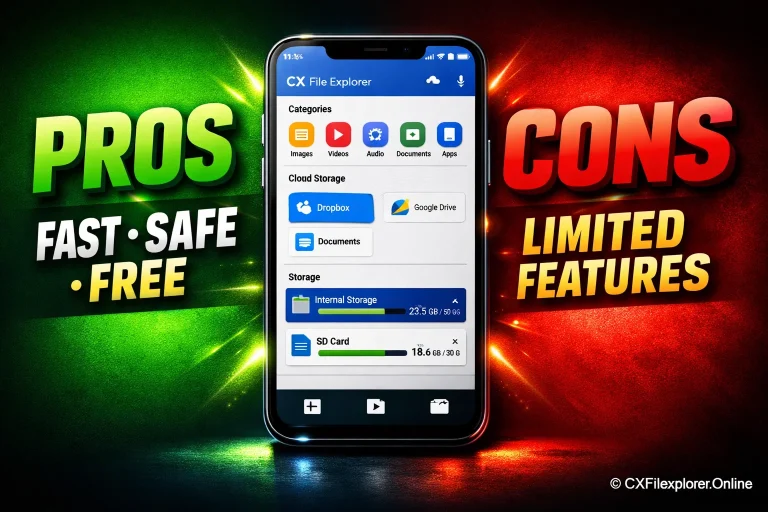
Understanding the strengths and weaknesses of Cx File Explorer and Solid Explorer helps you choose the right app for your needs. Every app has areas where it excels and areas where it could improve, so knowing both sides is essential.
Cx File Explorer: Advantages and Disadvantages
Advantages
- Lightweight design that makes the app run fast and smoothly.
- Simple and user-friendly interface suitable for beginners.
- Quick performance, allowing easy file navigation.
- Efficient cloud storage handling for common services.
- Performs basic file operations without any complications.
- Offers a clean and clutter-free experience.
Disadvantages
- May not meet the needs of power users who require deeper file management features.
- Lacks advanced tools like dual-pane browsing.
- Limited customization options for users who want more control.
Solid Explorer: Advantages and Disadvantages
Advantages
- Offers advanced file management tools suitable for professional and power users.
- Includes dual-pane browsing, making file transfers faster and more efficient.
- Supports a wide range of cloud storage services.
- Provides strong security features like encryption for sensitive files.
- Highly customizable with themes, layouts, and plugins for enhanced control.
Disadvantages
- Heavier on CPU and RAM, which may slow down low-end devices.
- Can feel complex or overwhelming for beginners.
- Requires payment after the trial period, which might not suit users seeking a free solution.
Comparison Table: Pros and Cons of Each App
| Feature / App | Cx File Explorer | Solid Explorer |
|---|---|---|
| Lightweight and fast | Yes | No |
| Simple and intuitive user interface | Yes | Partially (slightly complex for beginners) |
| Efficient cloud storage integration | Yes | Yes |
| Handles basic file operations | Yes | Yes |
| Clean and minimal experience | Yes | No (more advanced interface) |
| Supports dual-pane browsing | No | Yes |
| Offers advanced customization options | No | Yes |
| Suitable for power users needing full control | No | Yes |
| Strong security options | Basic | Yes |
| Resource usage (CPU & RAM) | Low | Higher |
Pricing and Value for Money
Choosing the right file manager also means considering its pricing and what value it gives for your money. Understanding the difference between free features and premium options ensures you pick an app that fits your needs without overspending.
Free vs Premium Features
Most users will find the free features in both Cx File Explorer and Solid Explorer enough for daily use, including basic file management, storage browsing, and cloud integration. Premium features, however, unlock advanced tools like dual-pane browsing, file encryption, or customizable themes. Evaluating which features you really need helps you decide if paying for premium adds real value to your workflow.
Subscription Plans and Costs
Solid Explorer offers a subscription model or one-time payment for premium features, while Cx File Explorer remains mostly free with optional in-app upgrades. Costs are generally reasonable, but considering the tools you will actually use ensures you don’t spend on unnecessary features. Comparing subscription plans carefully can save money while giving access to the best functionalities.
Frequently Asked Questions (FAQs)
Here are the most common questions users ask about Cx File Explorer and Solid Explorer. These answers help you quickly understand the apps’ features, performance, and compatibility before making a choice.
Read more: CX File Explorer FAQs
Final Verdict
When deciding between Cx File Explorer and Solid Explorer, it mostly depends on your needs and priorities. Cx File Explorer is lightweight, fast, and completely free, making it perfect for beginners or anyone who wants a simple, reliable file management app without spending a dime. Its intuitive interface and smooth performance make daily file handling a breeze.
On the other hand, Solid Explorer is designed for power users who want advanced customization, dual-pane browsing and extra features. Although it takes more storage and requires a small investment after the trial period, it rewards users with flexibility, enhanced security, and professional-grade tools. Choosing the right app comes down to whether you value simplicity and free features or advanced tools with paid options.