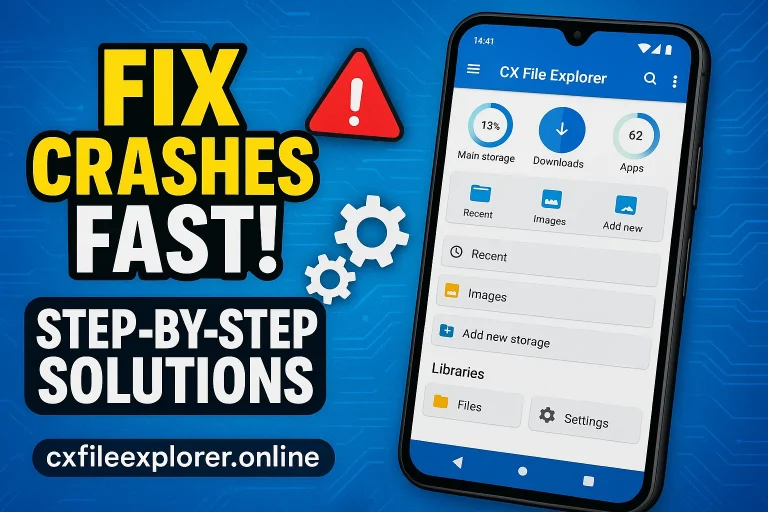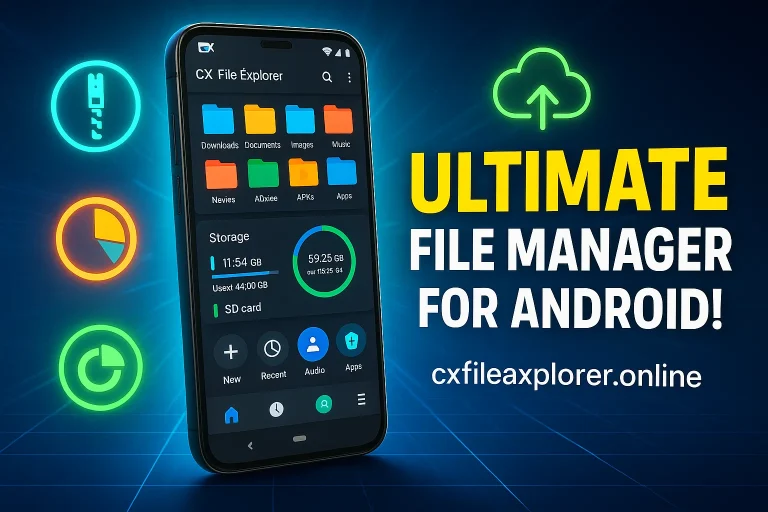
How to Transfer Files Wirelessly Using CX File Explorer (Complete 2026 Guide)
Transfer files fast and securely between phones, PCs, tablets and Firestick using CX File Explorer’s wireless tools.
If you’re tired of using cables, OTG connectors or slow methods like Bluetooth, then you’ll love how easy wireless file transfer becomes with CX File Explorer. I’ve used this tool many times, and the biggest benefit is that you don’t need any special accessories just your phone, your PC, and a shared WiFi network. Whether you want to move photos, videos or entire folders, CX File Explorer makes everything quick, clean and frustration-free. It’s one of the most reliable ways to transfer files without waiting endlessly or dealing with connection errors.
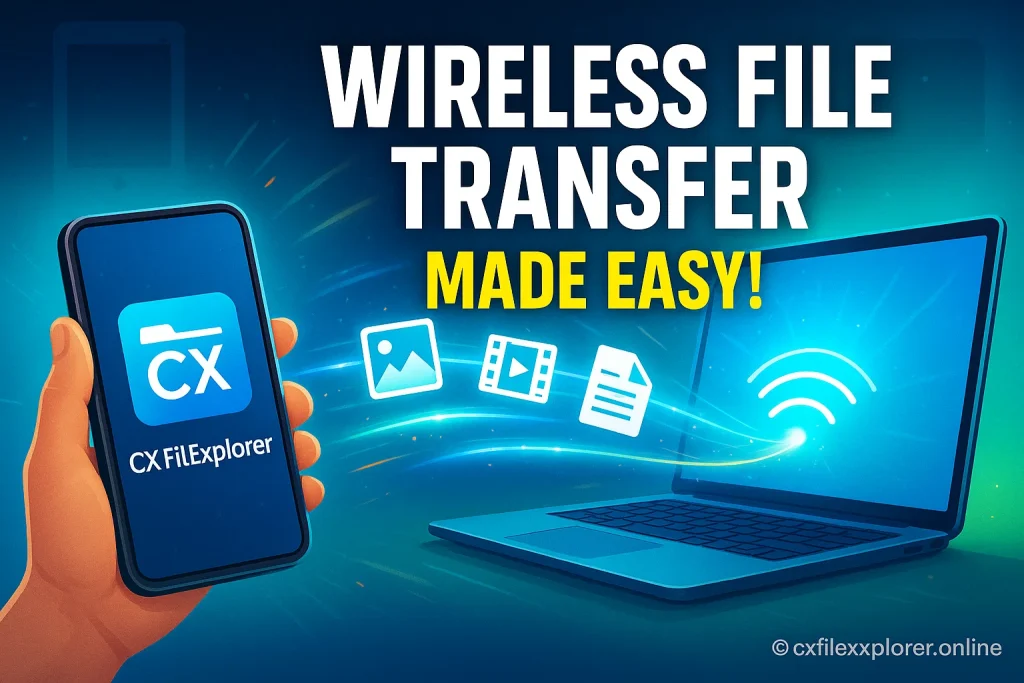
What makes this method even better is the control it gives you. With CX File Explorer’s Access from Network, you can open your phone’s storage directly on your laptop or send files from one phone to another in seconds. No apps to install on your PC, no complicated setup just a simple link that lets you drag and drop your files. Whether you’re a beginner or someone who transfers files daily, this method saves time and makes file sharing feel effortless.
See Comparison blog: Cx File Explorer vs. Solid Explorer: Ultimate Comparison 2026
Why Use CX File Explorer for Wireless File Transfer?
Using CX File Explorer makes wireless sharing feel smooth and stress-free, even if you’re not tech-savvy. It gives you fast access to your files without cables, apps or complicated setup.
Brief Advantages
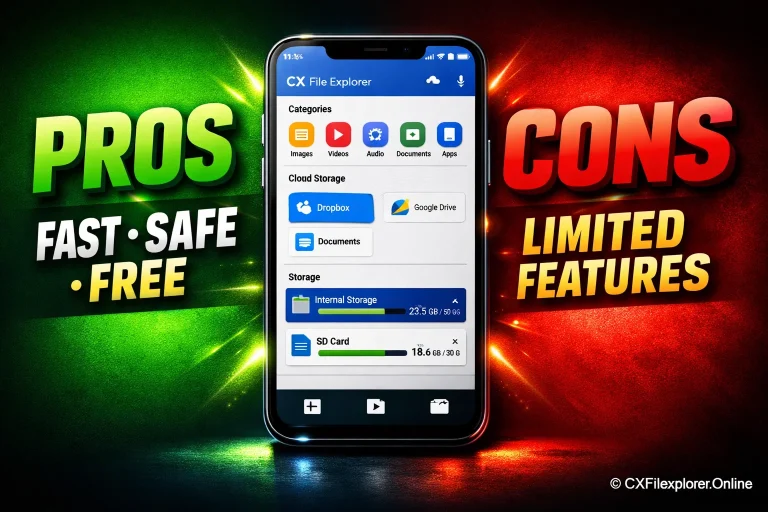
The biggest benefit is the clean and instant access you get through Access from Network, which lets you open your phone’s storage directly on another device. It works with photos, videos, documents, and even large folders without slowing down. Plus, it keeps your transfer inside your own WiFi network, making it safer than random online tools.
What Makes It Faster & Easier Than Bluetooth/USB
Bluetooth struggles with big files, but CX File Explorer uses your local WiFi, so transfers happen much faster. USB cables require drivers, ports, and often cause connection errors, while CX File Explorer works with just a simple link. You don’t need extra software or accessories just tap, connect, and start moving your files.
Requirements Before You Start (Android, PC, WiFi Setup)
Before you begin wireless sharing, it’s important to check that your devices and network can support CX File Explorer’s wireless transfer feature. Once everything is ready, the whole process becomes smooth and takes only a few minutes.
Compatible Devices
CX File Explorer works on almost any Android phone that supports modern WiFi connectivity. You can connect it to Windows PCs, laptops, and even other phones without extra software. As long as both devices have storage access, file transfers work without issues.
Network Settings
For stable transfers, make sure both devices are connected to the same WiFi network, preferably your home router. A strong network helps large files move faster without interruptions. Avoid mobile hotspots if possible, as they can slow down your transfer speed.
Storage Permissions
When you open CX File Explorer for the first time, grant it storage permissions so it can read and send your files. Without granting access, the app won’t be able to display your folders correctly. This also ensures smooth copy-paste actions during wireless transfers.
Transfer Files Wirelessly From Phone to Phone (Step-by-Step)
Learn how to share data between two Android devices without cables using CX File Explorer. This simple method uses your local WiFi network to move files safely and quickly.
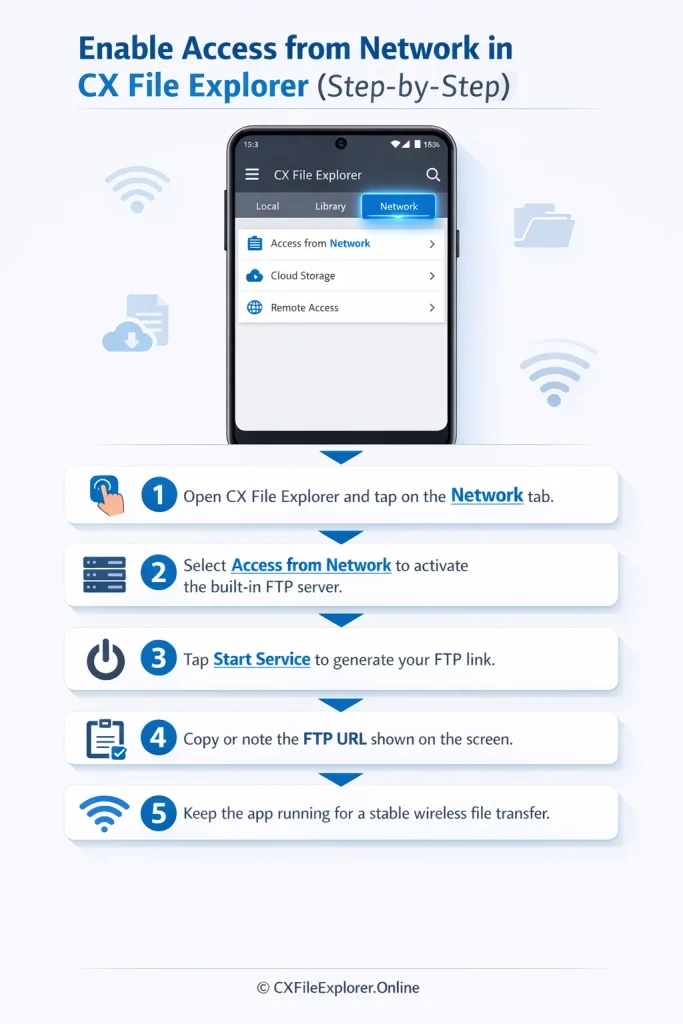
Enable “Access from Network” in CX File Explorer
- Open CX File Explorer on the sending phone and tap on the Network tab.
- Select Access from Network to activate the built-in FTP server feature.
- Tap Start Service to generate your unique FTP link address.
- Note down the displayed FTP URL carefully, as you will need it on the second device.
- Keep the app running in the background to maintain a stable wireless file transfer connection.
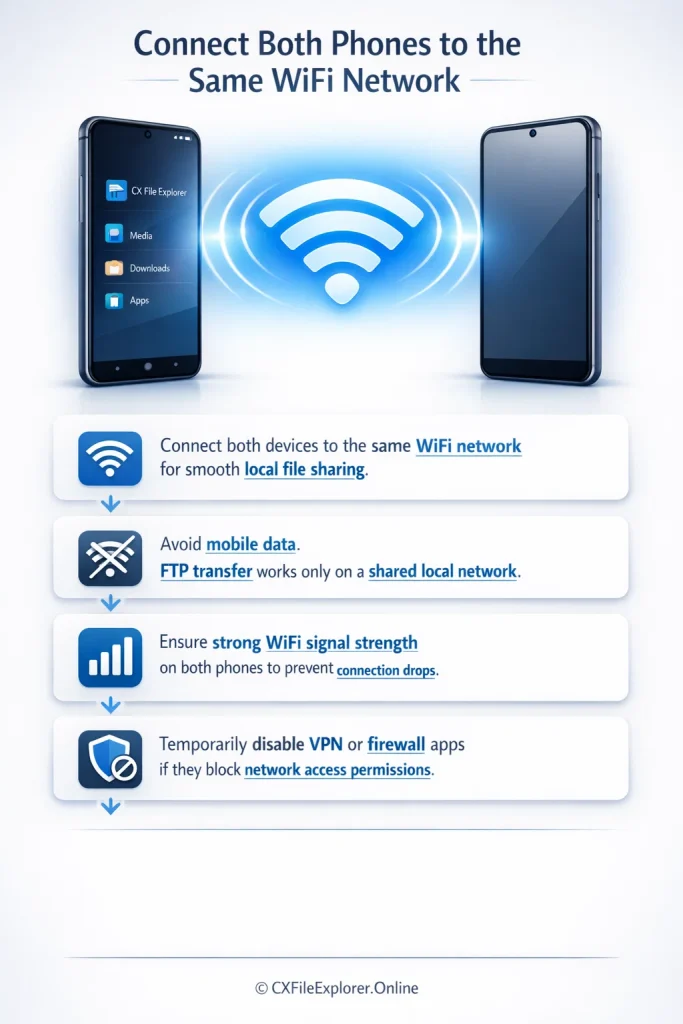
Connect Both Phones to the Same WiFi Network
- Make sure both devices are connected to the same WiFi network for smooth local file sharing.
- Avoid using mobile data, as FTP transfer works only on a shared local network.
- Check that the WiFi signal is strong on both phones to prevent connection drops.
- Disable any VPN or firewall app temporarily if it blocks network access permissions.
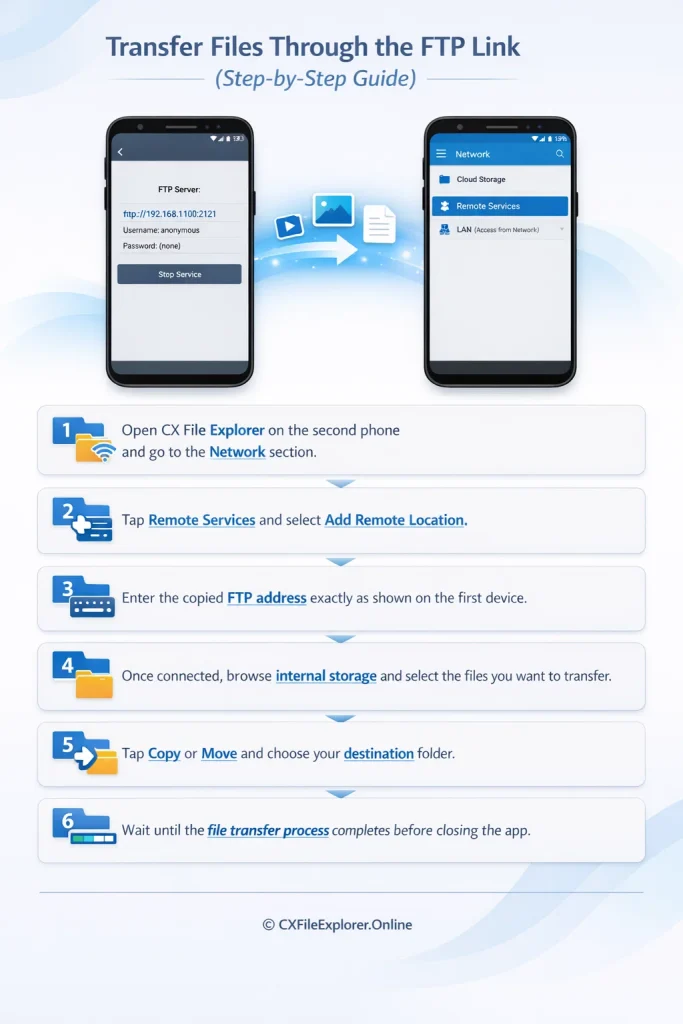
Transfer Files Through the FTP Link
- On the second phone, open CX File Explorer and go to the Network section.
- Tap on Remote Services and choose Add Remote Location.
- Enter the copied FTP address exactly as shown on the first device.
- Once connected, browse the internal storage and select the files you want to copy.
- Tap Copy or Move, then choose your desired destination folder.
- Wait until the file transfer process completes successfully before closing the app.
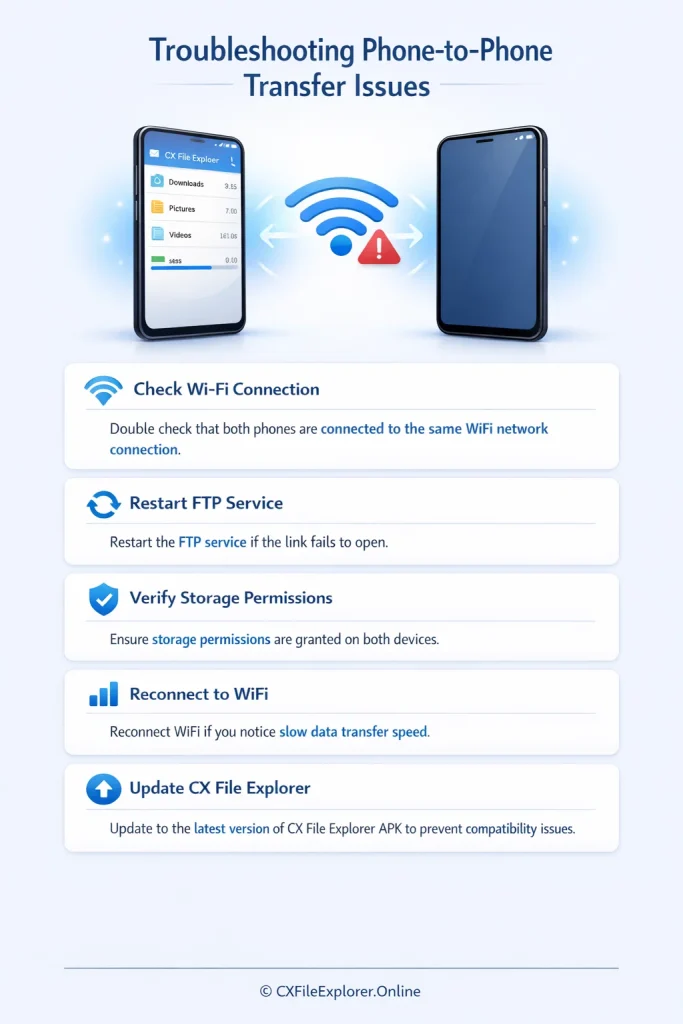
Troubleshooting Phone-to-Phone Transfer Issues
- Double check that both phones are on the same WiFi network connection.
- Restart the FTP service if the link fails to open.
- Ensure storage permissions are granted to CX File Explorer on both devices.
- Reconnect WiFi if you experience slow data transfer speed.
- Update to the latest version of CX File Explorer APK to avoid compatibility issues.
Transfer Files Wirelessly From Phone to PC or Laptop
Learn how to connect your Android device to a computer using CX File Explorer without USB cables. This secure WiFi file transfer method lets you access your phone storage on a PC like a shared folder.
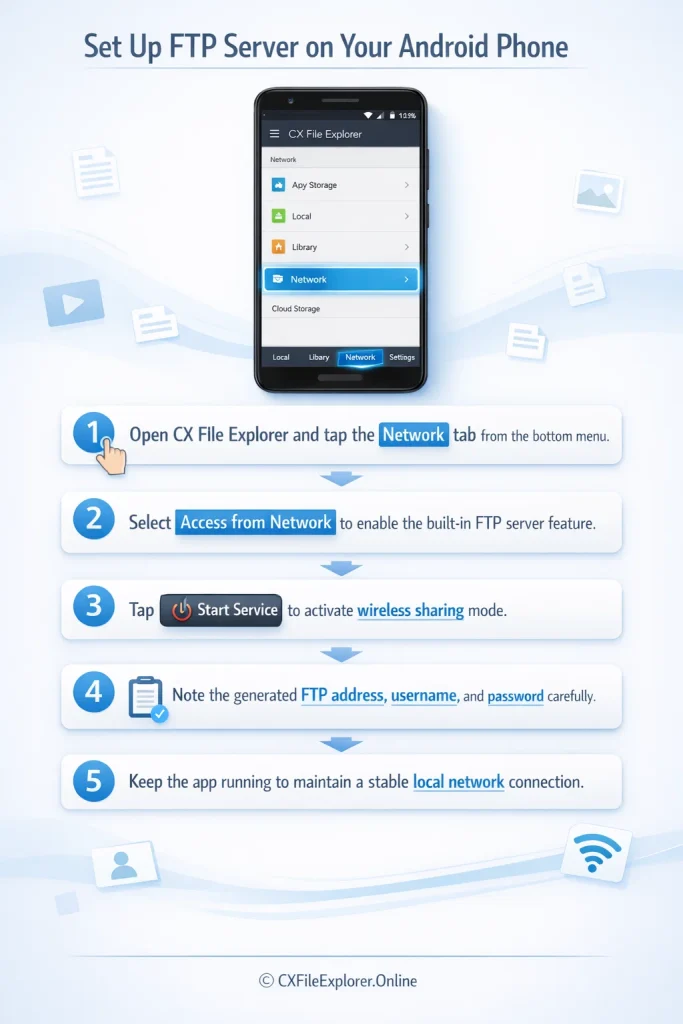
Set Up FTP Server on Your Android Phone
- Open CX File Explorer on your PC and tap on the Network tab from the bottom menu.
- Select Access from Network to enable the built-in FTP server feature.
- Tap Start Service to activate the wireless sharing mode.
- Carefully note the generated FTP address, username and password.
- Keep the app running to maintain a stable local network connection between devices.
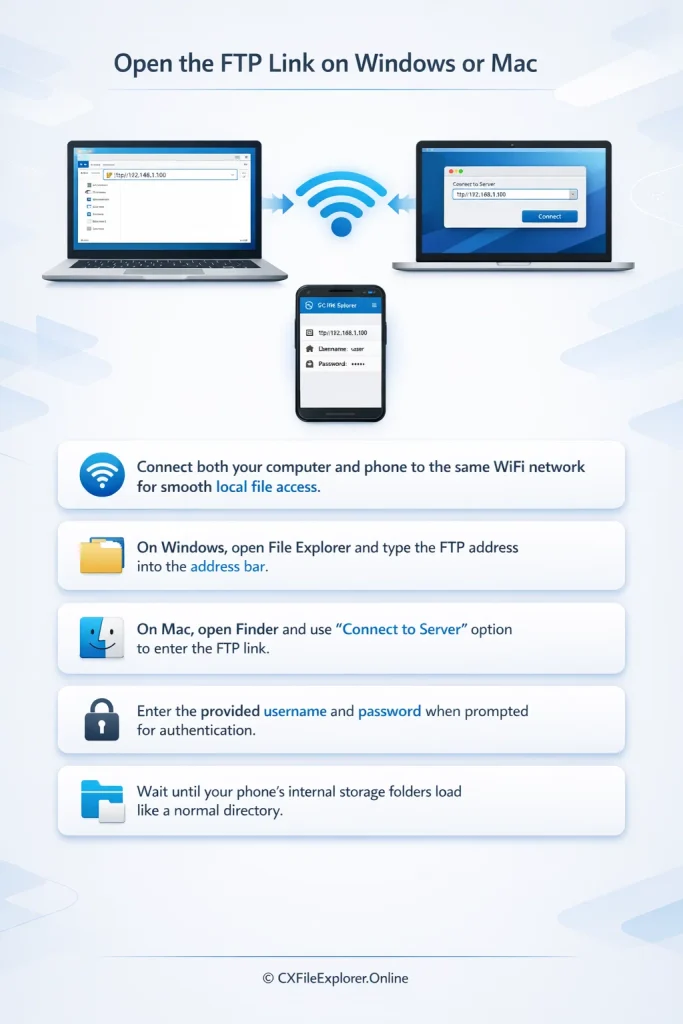
Open the FTP Link on Windows or Mac
- Connect your computer and phone to the same WiFi network for smooth local file access.
- On Windows, open File Explorer and type the FTP address into the address bar.
- On Mac, open Finder and enter the FTP link in the “Connect to Server” option.
- Enter the provided username and password when prompted for authentication.
- Wait a few seconds until your phone’s internal storage folders load on the screen.
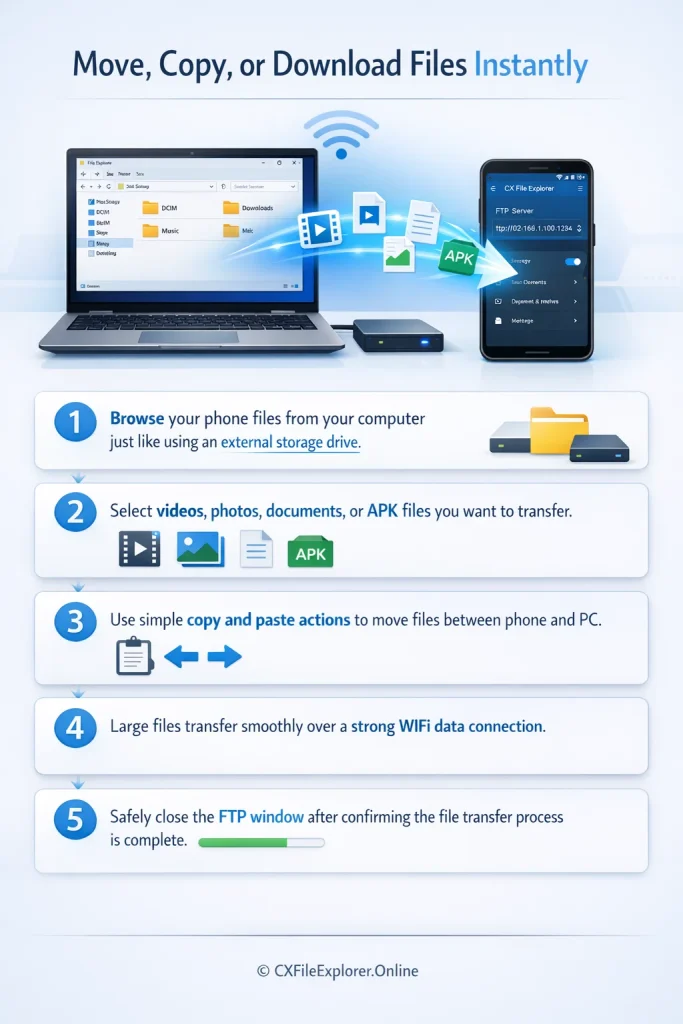
Move, Copy or Download Files Instantly
- Browse your phone files directly from your computer as if using an external storage drive.
- Select files such as videos, photos, documents, or APK files you want to transfer.
- Use simple copy and paste actions to move files between phone and PC.
- Large files transfer smoothly over a strong WiFi data connection.
- Safely close the FTP window after confirming the file transfer process is complete.
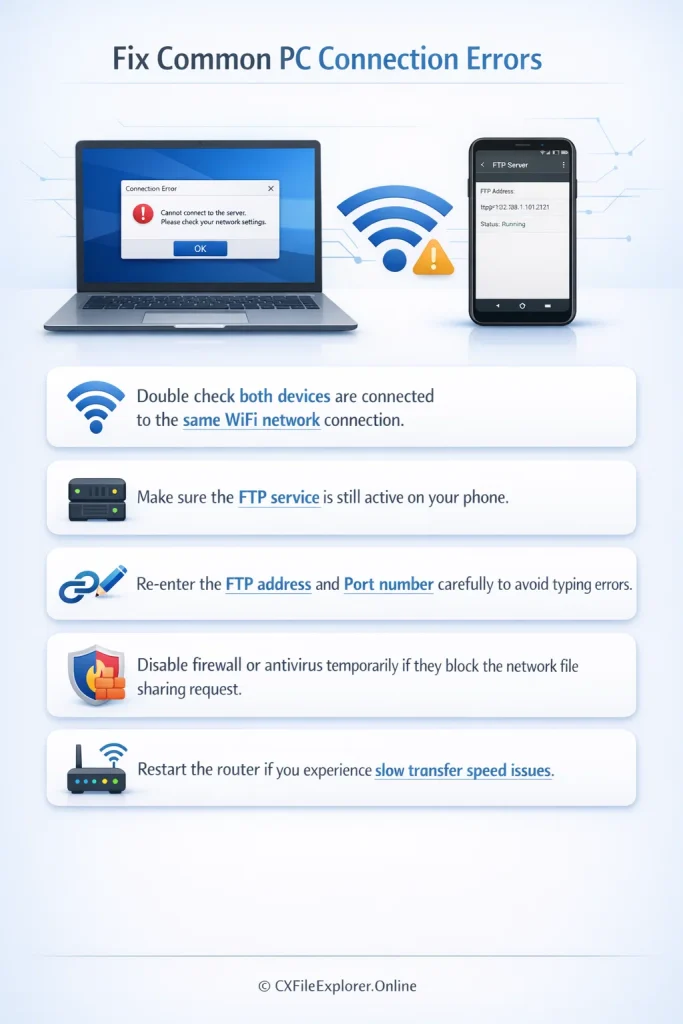
Fix Common PC Connection Errors
- Double check both devices are connected to the same WiFi network connection.
- Make sure the FTP service is still active on your phone.
- Re-enter the FTP address and Port number carefully to avoid typing errors.
- Disable firewall or antivirus temporarily if they block the network file sharing request.
- Restart the router if you experience slow transfer speed issues.
Also Read: CX File Explorer Troubleshooting Guide
Bonus: Transfer Files to Firestick, TV or Tablet
Sending files to your Firestick, Smart TV, or Android Tablet is just as smooth when using Cx File Explorer’s wireless tools. You don’t need cables or extra apps just connect both devices to the same Wi-Fi and you’re ready to go. The app automatically detects nearby devices, so sharing becomes quick and stress-free. Even large videos or apps move smoothly without buffering or slowdowns.
Safety Tips While Using CX File Explorer’s Network Access
Using CX File Explorer’s Network Access is safe as long as you follow a few basic rules. These small precautions protect your phone, files, and Wi-Fi from unwanted access.
Local Network Only
Always use Network Access on your home Wi-Fi, because it keeps your data inside your private network. Devices connected to the same network can safely browse your shared files. This simple step reduces the chances of any unknown person accessing your files.
Avoid Public WiFi
Never use this feature on public Wi-Fi, because anyone connected to that network can potentially scan for devices. Public networks are not encrypted, which makes your FTP connection easier to intercept. Staying on private Wi-Fi keeps your file transfer fully protected.
Permission Settings
Before sharing files, check that only the necessary permissions are enabled in CX File Explorer. This ensures the app shares only the storage you choose, not your entire device. Proper permission control keeps your personal data safe while transferring.
Read our Blogs: How to get Cx File Explorer on Oculus (Meta) Quest 2?
FAQs
Read more: Cx File Explorer FAQs
Final Verdict
Wireless file transfer with CX File Explorer is fast reliable and very easy to use. You can move photos videos large files and folders between devices without using USB cables or extra tools. The built in FTP network access lets you connect phones tablets and PCs through a strong local WiFi connection. This method saves time reduces cable clutter and keeps your files organized during the file transfer process.
If you regularly share files between devices this wireless file sharing solution makes everything simple. The setup process is beginner friendly and you can connect devices enter FTP credentials and start transferring within minutes. It also works with Firestick Smart TV and Android tablets which gives you more flexibility. Overall CX File Explorer wireless transfer is a secure efficient and modern way to manage your digital files without dealing with wires or slow Bluetooth transfer.