How to Use Cx File Explorer: Settings, Tips and Functions
Learn how to use Cx File Explorer with easy steps, smart settings and powerful tips to manage files faster on Android.
Cx File Explorer is one of the best Android file managers you can use to easily organize, move, copy, or share files in one place. Whether you want to access your local storage, manage files in cloud drives, or connect to a local network (LAN/FTP), this app handles it all with a clean and beginner-friendly interface.
In this guide, you’ll learn how to use Cx File Explorer, understand its settings and discover useful tips to manage your files like a pro. Let’s get started!
What Makes it Stand Out?
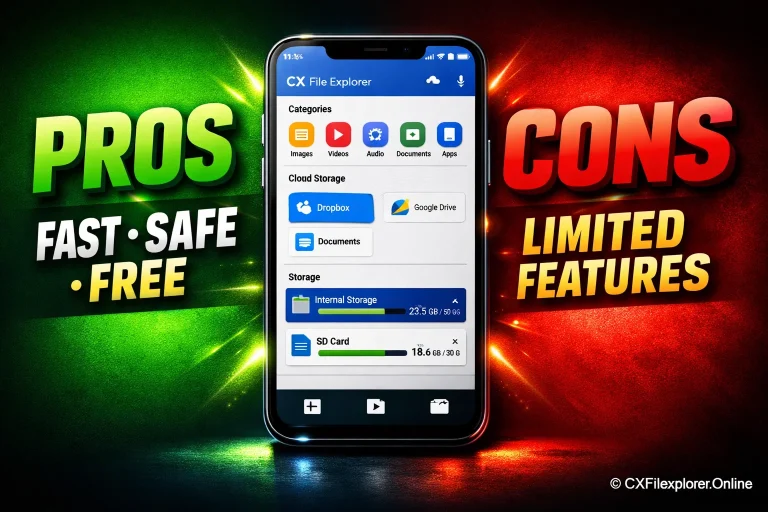
Cx File Explorer stands out by delivering clear benefits: faster file organization, easy cloud synchronization and wireless file transfer between devices without cables. Its storage cleaner helps free up space quickly, while secure file management tools protect important data and reduce accidental deletions.
Overall, this Android file manager app saves time, improves device performance and makes everyday file handling simple even for beginners.
Getting Started with Cx File Explorer
Before diving into all the features, let’s set up Cx File Explorer and get familiar with its interface. Don’t worry, it’s quick and super easy!
Download and Installation
- Open the Google Play Store on your Android device.
- In the search bar, type Cx File Explorer and tap Install.
- Wait for the app to download and install automatically.
- Once it’s done, tap Open to launch the app.
That’s it! You’ve successfully installed one of the most reliable file manager apps for Android. It’s lightweight, secure and works smoothly even on low-storage phones.
If you are facing any issue then read our blog: CX File Explorer Troubleshooting Guide.
Main Interface Overview
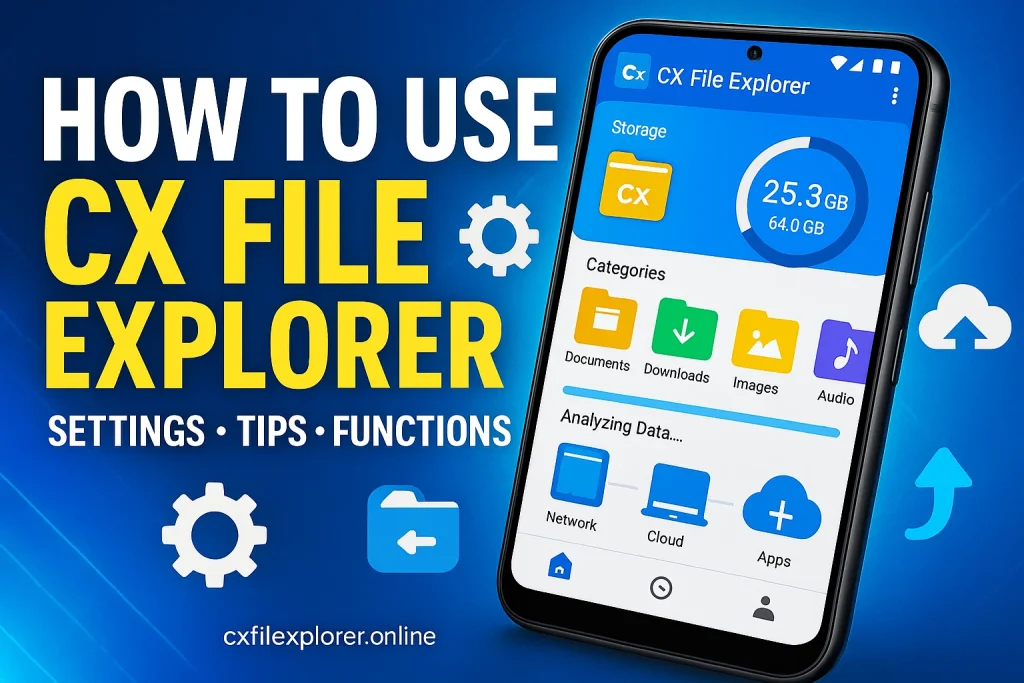
When you open the app for the first time, you’ll see a clean, organized dashboard divided into three main sections:
- Local: This shows all the files and folders stored on your phone or SD card. It’s where you’ll find your downloads, photos and app data.
- Library: This tab gives you quick access to categories like Images, Videos, Music and Documents, so you don’t need to search manually.
- Network: Here, you can connect your cloud accounts (like Google Drive, Dropbox, or OneDrive) or even access files on your local PC or FTP server.
You can also see a storage bar that shows how much space you’ve used and how much is left, helping you monitor and clean up your device easily.
Using Cx File Explorer
Once you open Cx File Explorer, you’ll instantly notice how clean and organized everything looks. The app isn’t overloaded with buttons, everything is right where it should be. Whether you want to view, move, delete, or back up files, this tool makes it effortless.
Let’s walk through its main uses so you can manage your files like a pro, even if you’re new to Android file managers.
View and Manage Files
The first thing you’ll see on the home screen is an overview of your device storage, how much space is used and what’s available. From here, you can browse through folders on your phone or SD card with just a few taps.
With Cx File Explorer, you can:
- Open, rename, copy, move, or delete files easily.
- Preview images, videos and documents without installing extra apps.
- Organize folders by name, size, or date for quick navigation.
- Search any file instantly using the built-in search bar.
Everything is visually clear, even beginners can find their way around within seconds.
Example: You can open your “Downloads” folder, select multiple files and delete them together to free up space.
Transfer Files Between Folders
Need to move files from one folder to another? It’s simple.
Just long-press on a file or select multiple files, tap Move and choose your new location.
You can even drag and drop files within the app if your device supports it.
Transferring photos, videos, or documents between folders takes just a few seconds, no technical skills needed.
Tip: Regularly move old photos or videos from internal storage to your SD card to keep your device running fast.
Work with Cloud Storage
Cx File Explorer supports most major cloud services, like Google Drive, Dropbox and OneDrive, all from one place.
To connect your account:
- Go to the Network tab.
- Select Cloud and choose your preferred service.
- Sign in and grant permission.
After connecting, you can upload, download, copy, or manage files across your devices, no need to switch between apps.
This feature is ideal if you use multiple cloud accounts or want to back up files automatically.
Use FTP and Local Networks
Another powerful feature of Cx File Explorer is its ability to connect to local networks (LAN) or FTP servers.
This means you can access your PC or another phone wirelessly and transfer files in seconds, no USB cable required.
To use it:
- Open the Network tab.
- Choose Access from Network or FTP.
- Follow the on-screen instructions to connect your device.
You can now browse and manage files stored on other devices as if they were part of your own storage.
This makes Cx File Explorer a complete solution for file sharing, remote access and device management.
Quick Summary:
With Cx File Explorer, you can view, organize, transfer and sync files across your phone, SD card, cloud accounts and local network, all through a single, easy-to-use app.
Navigation Options
When you open Cx File Explorer, you’ll see three main navigation tabs at the bottom of the screen, Local, Library and Network.
Each of these sections helps you manage different types of files quickly and easily.
Let’s understand how each one works in plain, simple language.
Local Storage
The Local Storage tab is like the heart of your device, this is where all your phone data lives.
Here, you’ll find access to Main Storage, Downloads, Apps and Recycle Bin, everything stored directly on your device.
With a few taps, you can:
- View, move, rename, or delete your files.
- Check used and free storage space with a visual indicator.
- Sort files by name, size, date, or type.
- Show hidden files if you want to view system folders.
The storage analyzer is another handy tool here, it helps you identify large files, app sizes and cached data that might be slowing down your phone.
And if your storage is almost full, the built-in Clean option lets you clear junk, empty the recycle bin and reclaim space instantly.
Pro Tip: Give usage access to the app in your phone’s settings, that way, you can see which apps are taking up the most space right inside Cx File Explorer.
Library Section
The Library tab is your shortcut to the files that matter most, like your photos, videos, music and documents.
You don’t have to search through folders anymore, everything is grouped neatly for quick access.
Here’s what you’ll find:
- Images: All your pictures from gallery and camera folders
- Audio: Songs, recordings and ringtones.
- Videos: Movies, clips and downloaded media.
- Documents: PDFs, Word files and text documents.
- New Files: Recently added or downloaded content.
There’s also a Clear option in the New Files section, it simply removes items from the list view, not from your phone storage.
This section is perfect if you often download files or media and want to locate them fast without digging through folders.
Network Access
Now for the most powerful feature, Network Access.
This tab connects your device to other phones, PCs and cloud services without using a USB cable.
Here’s what you can do:
- Use Access from Network to transfer files wirelessly between your Android and computer over Wi-Fi.
- Add a New Location to connect with cloud storage apps like Google Drive, Dropbox, OneDrive, or Box.
- Link your local or remote servers using FTP, SFTP, SMB, or WebDAV.
After connecting, you can upload, download, or manage files across all devices, just like you do locally.
Pro Tip: If you often back up files, connect your cloud account once and Cx File Explorer will remember it for future use.
This makes Cx File Explorer not just a file manager, but a complete data control hub for all your devices.
In short:
Local keeps your phone files organized, Library groups your media automatically and Network connects you to other devices or the cloud, all in one simple interface.
Cx File Explorer Settings
Cx File Explorer offers a flexible Settings menu that helps you personalize how the app behaves. You can change how files open, manage storage alerts, or even tweak advanced functions like USB detection and hidden files.
Let’s explore each option in simple words.
Default Apps
This section lets you choose your preferred apps to open specific file types automatically.
For example, you can set your favorite photo viewer for images or a media player for videos.
Once you select it, Cx File Explorer won’t ask again every time you open that file type.
It’s a great way to save time and keep your workflow smooth.
Built-in Apps
Cx File Explorer comes with its own built-in media viewers, including an image viewer, audio player, video player and text editor.
If you like using other apps, simply uncheck the built-in options to use your chosen apps instead.
This flexibility ensures you can customize your experience based on what works best for you.
So whether you prefer the built-in tools or third-party ones, it’s completely your call.
Notification Settings
Running low on storage? Cx File Explorer can alert you automatically before things get too tight.
You can enable or disable storage usage alerts and even adjust the warning level, usually between 85% to 99% full.
This helps you take quick action before your phone slows down or runs out of space.
If you prefer no alerts, you can simply turn this feature off.
Recycle Bin Settings
This option gives you control over what happens when you delete a file.
When Recycle Bin is enabled, deleted files go there first instead of vanishing instantly, so you can recover them later if needed.
You can also turn on delete confirmation, which asks before permanently removing files.
This double-check helps prevent accidental deletions and keeps your data safer.
Advanced Settings
Here’s where Cx File Explorer shows its power.
You can turn on USB detection, which automatically recognizes flash drives or external hard disks when connected.
You can also view System Storage to check internal Android system files (useful for advanced users).
Finally, the File Size Unit setting lets you switch between GB and GiB, depending on how you prefer data displayed.
Show Advanced Menus
Want extra tools? Turn on Advanced Menus for more control.
This unlocks handy features like Add to Home Screen, which lets you create shortcuts for quick access.
You can also Hide or Unhide files for privacy, or use Open As to choose how certain files open.
These small tools make Cx File Explorer feel smarter and more professional for everyday users.
In short:
The Settings menu in Cx File Explorer gives you the power to customize how the app looks, feels and behaves, from simple alerts to advanced file handling.
Customization Options
Interface and Display Adjustments
You can personalize the look of Cx File Explorer to match your style. Change the view type, such as list or grid and resize icons for better visibility. If you prefer, enable “Show Hidden Files” to manage every folder clearly.
Enable or Disable Features
Cx File Explorer gives you control over its tools, you can turn features on or off based on your needs. For instance, disable animations for speed or enable dark mode for a softer look. Every change helps you create a personalized file manager experience.
Tips and Recommendations
File Management Best Practices
Want to keep your files neat and easy to find? Here are a few practical tips for better organization:
- Use folders to group similar files like photos, documents, or videos.
- Rename files clearly, instead of “IMG001.jpg,” try “Vacation_2025.jpg.”
- Back up important data to cloud storage or an external drive regularly.
- Delete junk files and duplicates to save storage space.
- Use Cx File Explorer’s built-in tools to compress large files and make sharing easier.
Improve App Performance
To keep Cx File Explorer running smoothly, try these quick tweaks
- Clear cache files once a week to free up memory.
- Update the app regularly for new features and bug fixes.
- Turn off background syncing if you don’t use it often.
- Avoid keeping too many tabs open at once.
- Restart your device occasionally, it helps refresh the system.
FAQs (Frequently Asked Questions)
Read: CX File Explorer FAQs
Conclusion
Cx File Explorer is a powerful yet beginner-friendly Android file manager that helps you organize, move, copy and share files from local storage, SD cards, cloud drives and network devices in one place. Its clean interface, storage analyzer and smart search make file navigation fast and effortless. Advanced features like LAN/FTP connections, cloud integration, recycle bin recovery and USB support turn it into a complete file-management hub. Overall, the app boosts productivity, saves storage space, simplifies backups and enables secure multi-device file transfers.
In neutral terms, Cx File Explorer stands out as a reliable, efficient and lightweight solution for users who want better control over their digital storage. Its customizable settings, privacy features and performance tools make daily file handling smoother for both beginners and advanced users. If you found this guide helpful, share it with others and drop your thoughts or questions in the comments.
You would also like: How to get Cx File Explorer on Oculus (Meta) Quest 2?