How to get Cx File Explorer on Oculus (Meta) Quest 2?
Discover how to manage VR files, sync cloud storage, and optimize your Oculus Quest 2 quickly with CX Explorer.
Master CX Explorer on Oculus Quest 2 EasilyManaging files on your Oculus Quest 2 can be tricky if you don’t have the right tools. Many VR users struggle with organizing games, videos, and documents efficiently. That’s where CX File Explorer comes in, making file management on VR devices smooth, fast, and hassle-free.
We know how frustrating it feels when your VR storage gets cluttered or you can’t find your favorite files. As a trusted guide in Oculus Quest 2 tips, we’ve tested CX File Explorer thoroughly. Users around the world rely on it to safely manage media files, cloud storage, and even network-shared documents.
With CX File Explorer, you can easily browse local storage, connect to cloud accounts, and organize VR content without stress. This guide will show step-by-step how to install, use, and troubleshoot it. By following our instructions, you’ll get a seamless VR file management experience, keeping your Quest 2 organized and optimized.
What is CX File Explorer
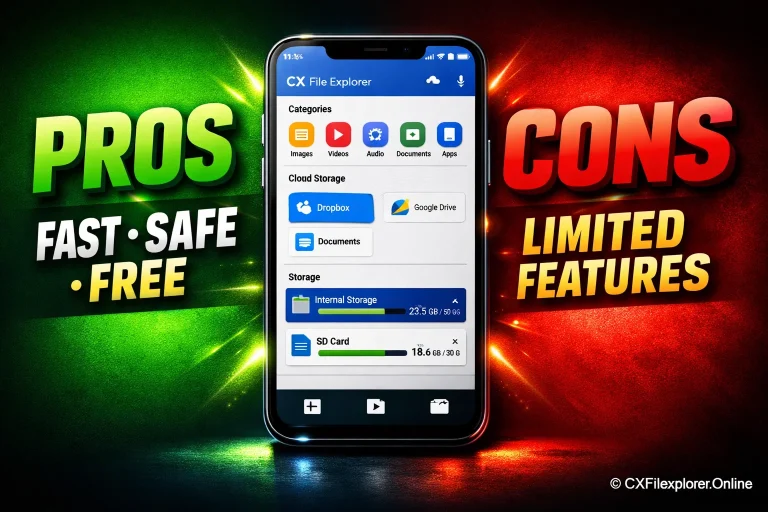
CX File Explorer is a powerful file management app designed to make handling files simple and efficient. Whether you’re moving videos, organizing documents, or accessing VR storage, it offers an intuitive interface that even beginners can navigate with ease. Unlike basic file explorers, it supports cloud storage integration, network sharing, and detailed file analysis, making it a perfect companion for Oculus Quest 2 users who want to keep their virtual world tidy and organized.
So, why is it particularly useful for Oculus Quest 2 owners? Managing files directly on a VR headset can be tricky, especially when your library grows with games, 360° videos, and media files. CX File Explorer lets you quickly browse local storage, connect to cloud accounts, and move or delete files effortlessly. By streamlining VR file management, it not only saves time but also ensures your Quest 2 runs smoothly without clutter slowing things down.
Key Features of CX File Explorer
File Management Made Easy
CX File Explorer makes file management on Oculus Quest 2 simple and efficient. You can quickly move, copy, or delete files, and the intuitive interface helps organize games, videos, and documents effortlessly. With clear storage insights, managing VR content becomes stress-free, saving time and keeping your headset clutter-free for a smoother experience.
Cloud Storage Integration
Connecting to cloud storage like Google Drive or Dropbox is seamless with CX File Explorer. You can sync files across devices, upload or download media, and securely access your content anytime. This cloud integration ensures your VR files are safe, organized, and always accessible without relying on extra apps or cables.
Network Sharing Capabilities
Transferring files over Wi-Fi is easy with CX File Explorer’s network sharing features. Move videos, game backups, and documents between your Oculus Quest 2 and other devices smoothly and securely. This feature helps manage multiple devices, share content quickly, and keep your VR library organized without the hassle of cables.
How to Install CX File Explorer on Oculus Quest 2
Installing CX File Explorer on your Oculus Quest 2 is easier than you might think. With the right steps, you can start managing your VR files efficiently in just a few minutes.
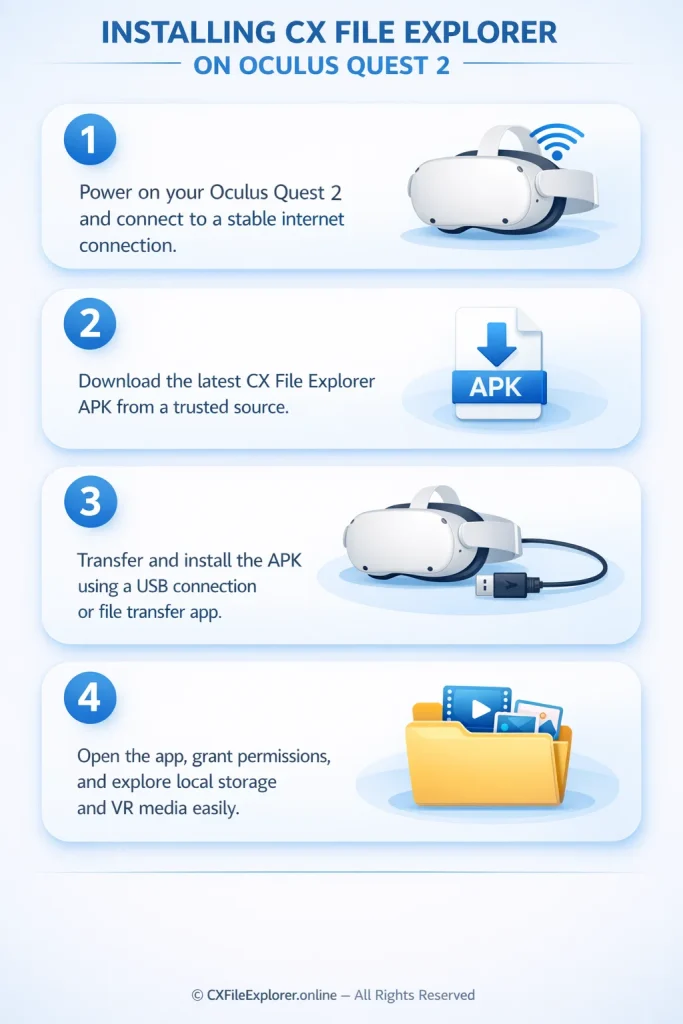
Step-by-step installation guide
- Make sure your Oculus Quest 2 is powered on and connected to a stable internet connection.
- Download the latest CX File Explorer APK from a trusted source.
- Use a file transfer app or connect via USB to install the APK on your VR headset.
- Open the app, grant necessary permissions, and start exploring local storage and VR media files effortlessly.
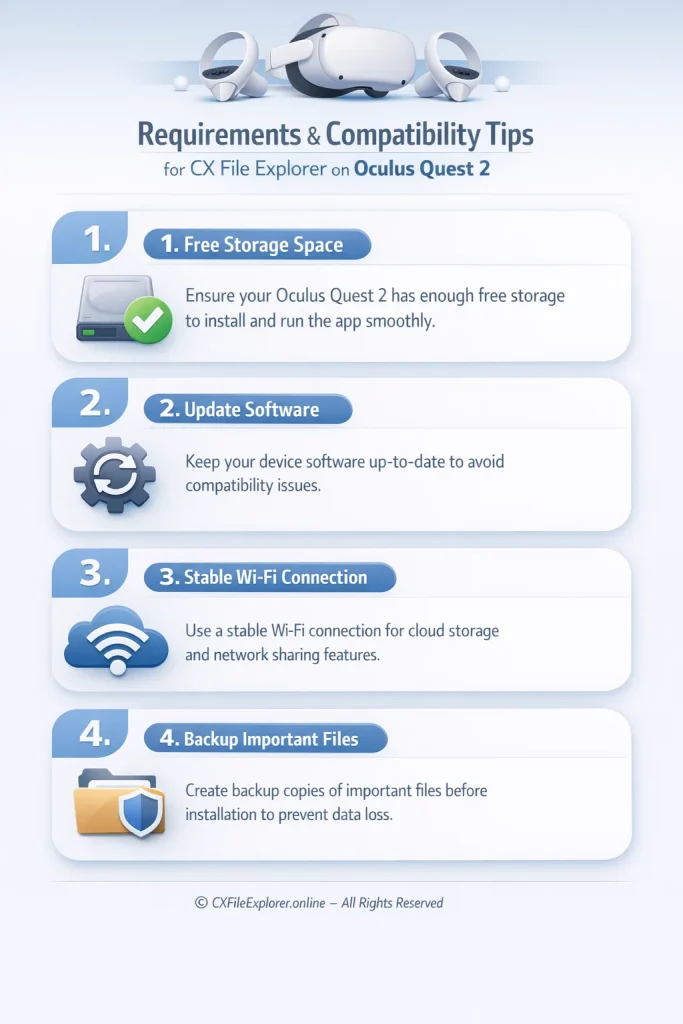
Requirements and compatibility tips
- Ensure your Oculus Quest 2 has enough free storage to install and run the app smoothly.
- Check that your device software is up-to-date to avoid compatibility issues.
- A stable Wi-Fi connection is recommended for cloud storage integration and network sharing features.
- Keep backup copies of important files before installation to prevent accidental data loss.
Navigating the CX File Explorer Interface
Exploring your Oculus Quest 2 files becomes effortless with CX File Explorer. Understanding the interface helps you save time and keep your VR storage organized efficiently.
Understanding the Home Screen
- The home screen shows all your main folders and recent files at a glance.
- You can quickly access local storage and cloud accounts without digging through menus.
- The layout is intuitive, making it easy to find games, videos, or documents.
- Even beginners can feel confident managing files with the friendly user interface.
Accessing Local and Cloud Files
- Browse local files stored directly on your Oculus Quest 2 quickly.
- Connect to cloud storage like Google Drive or Dropbox to access media anytime.
- Switching between local and cloud storage is simple and seamless.
- You can upload, download, or move files effortlessly between devices.
Using Categories for Better Organization
- Files are automatically sorted into categories like videos, images, and documents.
- This helps locate content faster and reduces clutter in VR storage.
- You can create custom folders or rename files for personal organization.
- Using categories keeps your Oculus Quest 2 library neat and easy to navigate.
Managing Files on Oculus Quest 2
Keeping your Oculus Quest 2 files organized is essential for smooth VR performance. With CX File Explorer, managing media, games, and documents becomes simple and stress-free.
Copying, Moving, and Deleting Files
- You can easily copy, move, or delete files directly on your VR headset without extra apps.
- Drag and drop or use the menu options to reorganize folders and media quickly.
- Even large video or game files can be moved seamlessly between local storage or cloud accounts.
- Regularly deleting unused files helps keep your Oculus Quest 2 storage clean and efficient.
Organizing Media and Documents Efficiently
- CX File Explorer lets you sort files into categories like videos, images, and documents automatically.
- You can create custom folders for better file organization and faster access.
- Using consistent naming and folder structures makes it easy to find content later.
- A well-organized VR library improves both performance and your overall virtual reality experience.
Tips for VR Storage Optimization
- Regularly check storage usage to identify large files that can be moved or deleted.
- Connect to cloud storage to free up space without losing important data.
- Avoid keeping duplicate files, especially large VR media files, on the headset.
- Optimizing storage ensures your Oculus Quest 2 runs smoothly and loads apps faster
Connecting CX File Explorer to Cloud Services
Managing files on your Oculus Quest 2 gets even easier when you connect CX File Explorer to cloud storage. This lets you access and sync important media without worrying about storage limits.
Supported Cloud Platforms
- CX File Explorer works with popular cloud platforms like Google Drive, Dropbox, OneDrive, and Box.
- You can access files from multiple accounts directly on your VR headset.
- It supports both personal and business cloud accounts, making it versatile.
- This wide support ensures all your important documents, videos, and media files stay connected and available.
Setting Up and Syncing Files
- Connect your preferred cloud account within CX File Explorer easily by logging in.
- You can upload, download, or move files between local storage and cloud storage seamlessly.
- The sync feature keeps your files updated across devices automatically.
- With just a few steps, all your VR media and documents stay organized and accessible anytime.
Advantages of Cloud Integration
- Cloud integration frees up valuable Oculus Quest 2 storage by storing files online.
- You can access your content from multiple devices without transferring manually.
- It ensures file safety, preventing data loss even if something happens to your headset.
- Overall, integrating cloud storage makes VR file management more efficient, secure, and convenient.
Troubleshooting Common Issues
Even the best apps can run into problems sometimes. Knowing how to fix CX File Explorer issues ensures smooth Oculus Quest 2 file management without frustration.
Installation Problems
- Sometimes the APK may fail to install due to insufficient storage or outdated device software.
- Make sure your Oculus Quest 2 has enough free space before installation.
- Download the latest version of CX File Explorer from a trusted source to avoid errors.
- Restarting your headset often resolves minor installation glitches quickly.
File Access Errors
- If you can’t open or move files, check the app’s permissions to ensure it can access storage.
- Certain protected folders or cloud files may require login or authorization to access.
- Refreshing or reconnecting cloud accounts can solve most access issues.
- Regular updates keep the app compatible and prevent file read/write errors.
Network Connection Issues
- Ensure your Wi-Fi connection is stable when using network sharing or cloud features.
- Resetting the router or reconnecting the headset often fixes connectivity problems.
- Check for app updates that improve network stability and speed.
- Avoid using multiple heavy apps on the headset while syncing files to reduce network conflicts.
Tips & Tricks for Maximizing Productivity
Getting the most out of CX File Explorer on Oculus Quest 2 is easier when you know a few handy tips. These tricks save time, reduce clutter, and keep your VR storage well-organized.
Quick Shortcuts and Gestures
- Use gesture controls to swipe, select, and move files quickly without multiple taps.
- Familiarize yourself with keyboard shortcuts or VR menu shortcuts if using an external keyboard.
- Quick access to recent files helps you save time and navigate VR content faster.
- Learning these small tricks makes daily file management more efficient and less frustrating.
Organizing Large VR Libraries
- Sort files into categories like games, videos, images, and documents for easy access.
- Use custom folders to manage large VR media libraries without clutter.
- Regularly clean up unused files to prevent your Oculus Quest 2 from slowing down.
- A well-structured library improves navigation and boosts your overall VR experience.
Backup and Restore Recommendations
- Always create backups of important files before making major changes.
- Sync your files with cloud storage to prevent accidental data loss.
Restore files easily if something goes wrong using CX File Explorer’s backup feature. - Regular backups ensure your VR library is safe, organized, and always accessible.
FAQs:
Conclusion
CX File Explorer makes Oculus Quest 2 file management smooth, organized, and efficient. From copying, moving, and deleting files to connecting with cloud storage and managing large VR libraries, it handles everything seamlessly. Its intuitive interface and network sharing capabilities save time and keep your headset clutter-free. Overall, it’s a complete solution for both beginners and advanced VR users.
While some advanced users may prefer more technical tools, CX File Explorer balances simplicity and functionality perfectly. It’s reliable, easy to use, and supports all major file formats and cloud platforms. Whether you’re organizing videos, games, or documents, it provides practical features without overwhelming you. Its versatility makes it a strong choice for most Oculus Quest 2 owners.
If you found this guide useful, feel free to share it with fellow VR enthusiasts who want to get more out of CX File Explorer. Explore our dedicated sections covering step-by-step guides, in-depth feature breakdowns, and practical tips to help you manage files efficiently in VR. If you have questions, run into issues, or want to learn more about advanced features, leave a comment or check our support resources for expert help.