How to Get CX File Explorer on Oculus (Meta) Quest 3 Instantly
Learn how to install CX File Explorer on Meta Quest 3 safely with this easy step-by-step guide for smooth APK sideloading and file control.
Getting the CX File Explorer on Meta Quest 3 can completely change how you manage files inside your VR headset. If you’ve ever struggled to locate downloaded apps, transfer media or install APK files, you’re not alone. Many Meta Quest 3 users feel limited by the default file system. In this guide, you’ll learn exactly how to install and use CX File Explorer, so you can unlock better file management, smoother APK installation and easier VR storage control.
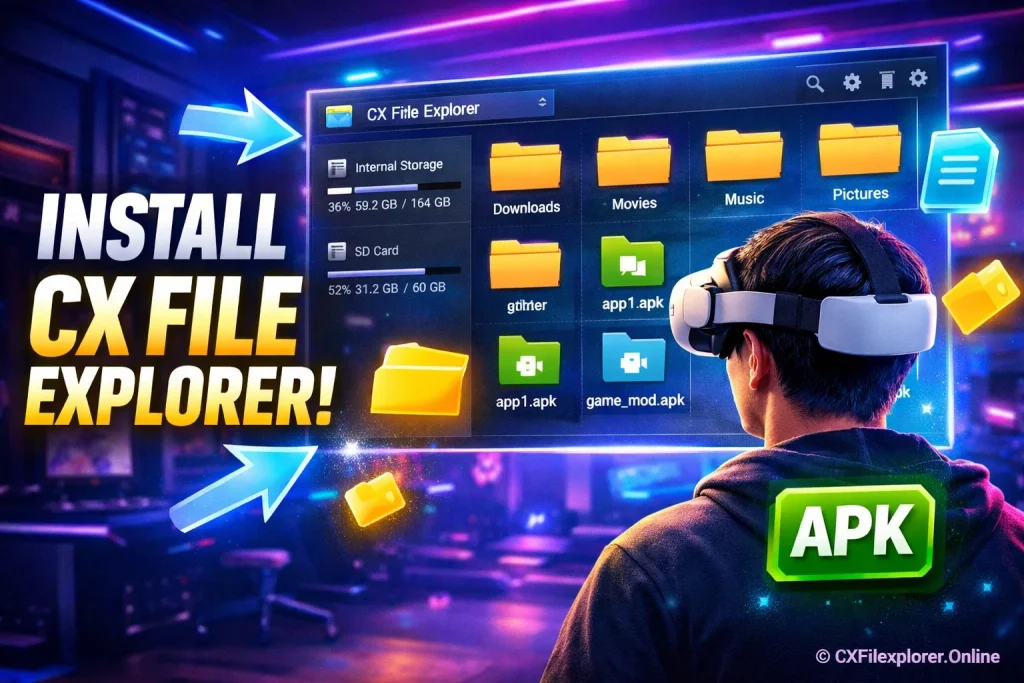
You might need CX File Explorer on Meta Quest 3 if you plan to sideload apps, move files between your PC and headset or organize media inside VR. As someone experienced with Android-based VR devices and sideloading tools like SideQuest, I’ll walk you through a clear and safe setup process. This article explains the full installation process step by step, including enabling Developer Mode, connecting your headset and accessing apps from Unknown Sources. Everything is written in simple language to help you install it confidently without confusion.
Read Also: How to get Cx File Explorer on Oculus (Meta) Quest 2?
What Is CX File Explorer?
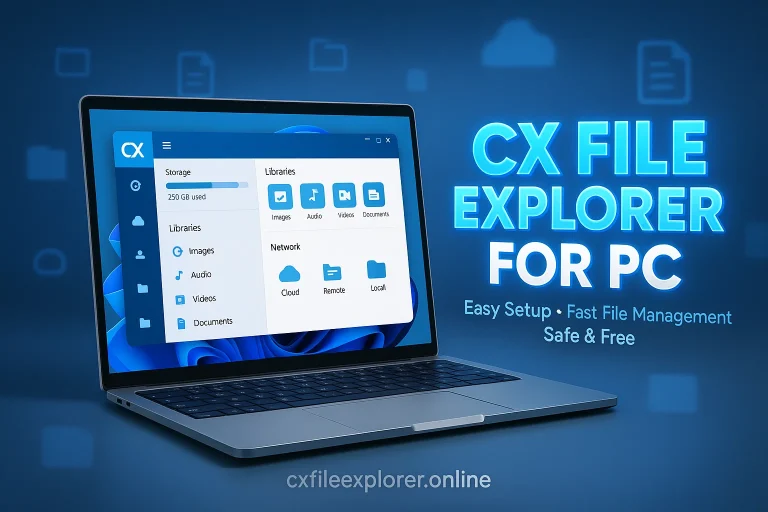
CX File Explorer is a powerful and lightweight Android file manager app that helps users browse, organize and manage files stored on their device. It gives you full control over internal storage, external storage, apps, downloads and even network locations. With its clean interface and smooth navigation, it makes handling documents, media files, APKs and app data simple even for beginners. If you’ve ever wanted a smarter way to control your device’s storage, this tool does exactly that without unnecessary complexity.
Key Features of CX File Explorer
- Advanced file management tools to copy, move, rename, delete and compress files
- Built-in APK installer for easy app sideloading
- Access to network storage, FTP connections and cloud services
- Clear storage analysis to identify large files and free up space
- User-friendly interface optimized for smooth navigation
More feature see: Best CX File Explorer Features 2026
Why It’s Useful on Meta Quest 3
On Meta Quest 3, managing files isn’t always straightforward, especially when you start sideloading apps or transferring media. That’s where CX File Explorer becomes incredibly useful. It allows you to access Unknown Sources apps, manage VR storage, install third-party APK files and move files between your headset and PC with ease. If you’re serious about customizing your VR experience, having a reliable file management app for Meta Quest 3 simply makes everything faster and more organized.
Can You Install CX File Explorer on Meta Quest 3?
Yes, you can install CX File Explorer on Meta Quest 3 and the process is completely possible through APK sideloading. Since the Meta Quest 3 runs on an Android-based operating system, it supports many Android apps, including file manager tools. This means there’s strong compatibility with Android-based VR devices, as long as you install the app correctly. By enabling Developer Mode and using tools like SideQuest for sideloading on Meta Quest 3, you can safely add apps that aren’t available on the official store and unlock deeper VR file management control.
Requirements Before Installing CX File Explorer
Before you start the CX File Explorer installation on Meta Quest 3, make sure you have these essentials ready:
- Meta Quest 3 headset
- A PC or laptop (Windows or Mac)
- A reliable USB-C cable for connection
- Developer Mode enabled on your Quest account
- SideQuest or the CX File Explorer APK file for sideloading
These basic tools ensure a smooth and safe APK sideloading process, helping you install the app without errors or confusion.
Step-by-Step Guide to Install CX File Explorer on Meta Quest 3
Follow this practical walkthrough to safely sideload CX File Explorer and unlock full file management control in VR.
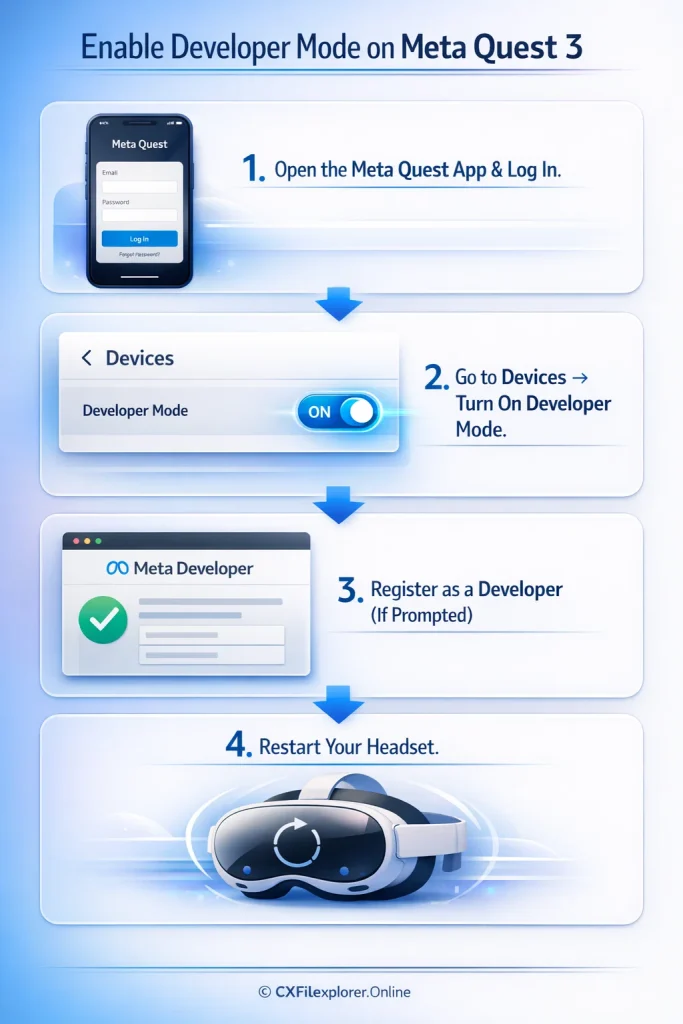
Step 1: Enable Developer Mode on Meta Quest 3
- Open the Meta Quest mobile app on your phone and log in to your headset account.
- Go to Devices → Developer Mode and turn it on.
- If prompted, register as a developer through your Meta account dashboard.
- Restart your Meta Quest 3 to apply the changes.
Step 2: Install SideQuest on Your PC
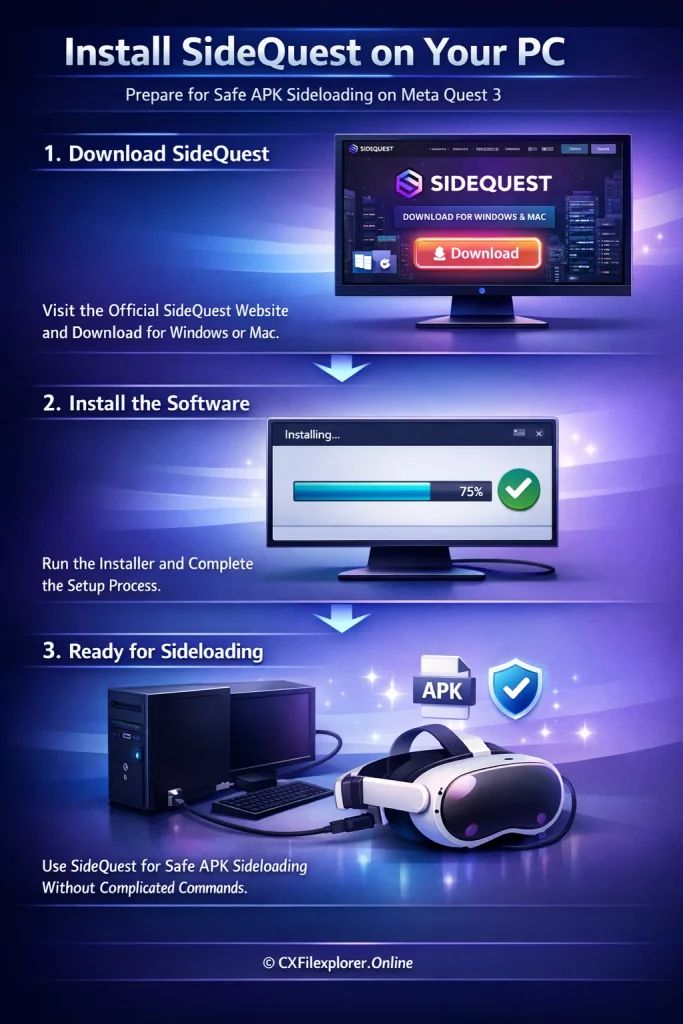
- Visit the official SideQuest website and download the version for Windows or Mac.
- Install the software and complete the basic setup.
- This tool allows safe APK sideloading on Meta Quest 3 without complicated commands.
Step 3: Connect Meta Quest 3 to Your Computer
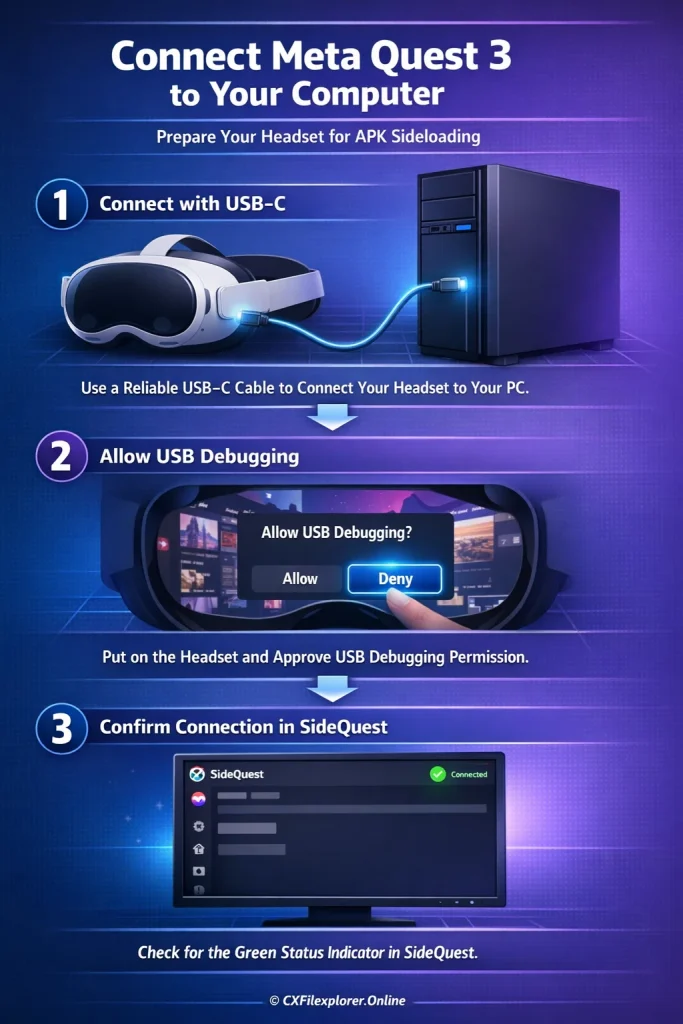
- Use a reliable USB-C cable to connect your headset to your PC.
- Put on the headset and allow USB debugging permission when prompted.
- Once connected, SideQuest should show a green status indicator.
Step 4: Download the CX File Explorer APK
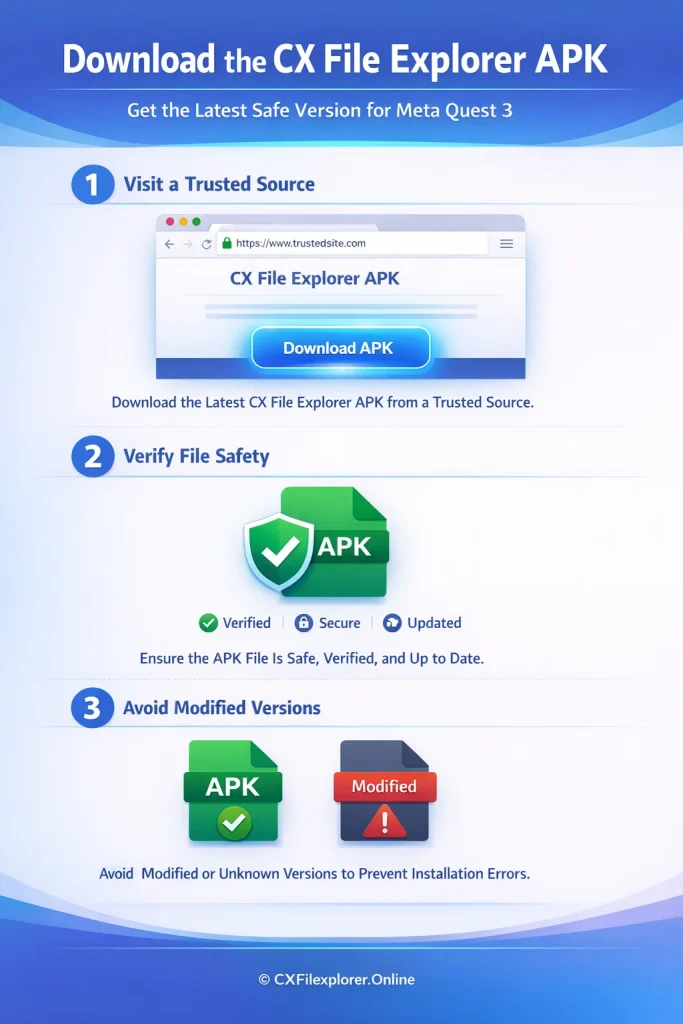
- Download the latest CX File Explorer APK from a trusted source (CXFilexplorer.Onine).
- Make sure the file is safe and updated to avoid installation errors.
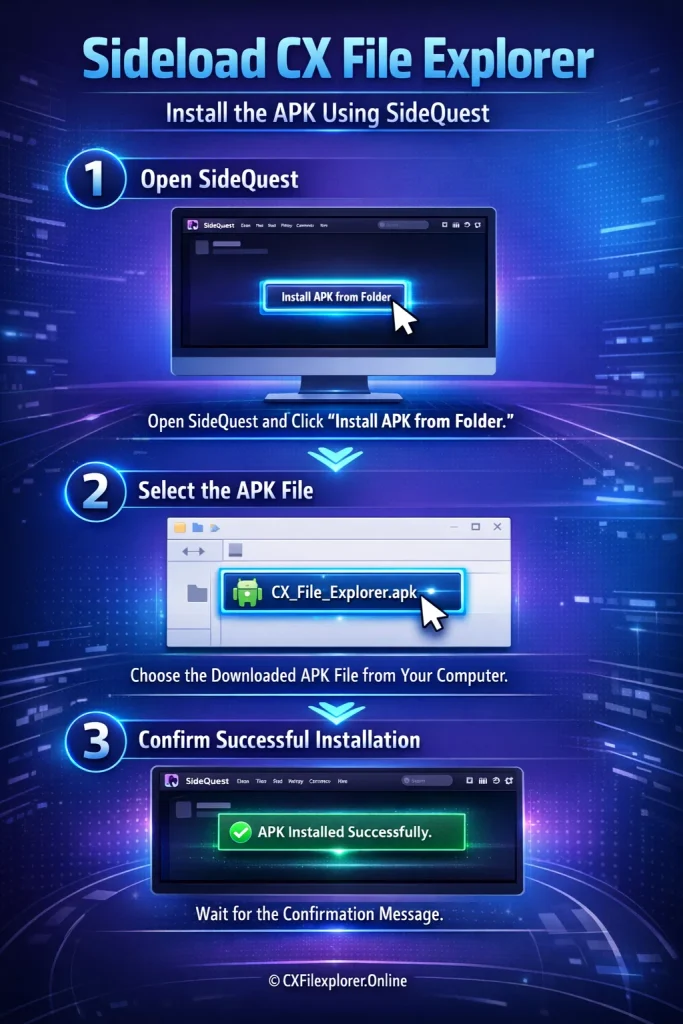
Step 5: Sideload CX File Explorer to Meta Quest 3
- Open SideQuest and click on the “Install APK from Folder” option.
- Select the downloaded APK file from your computer.
- Wait for the confirmation message showing the app was successfully installed.
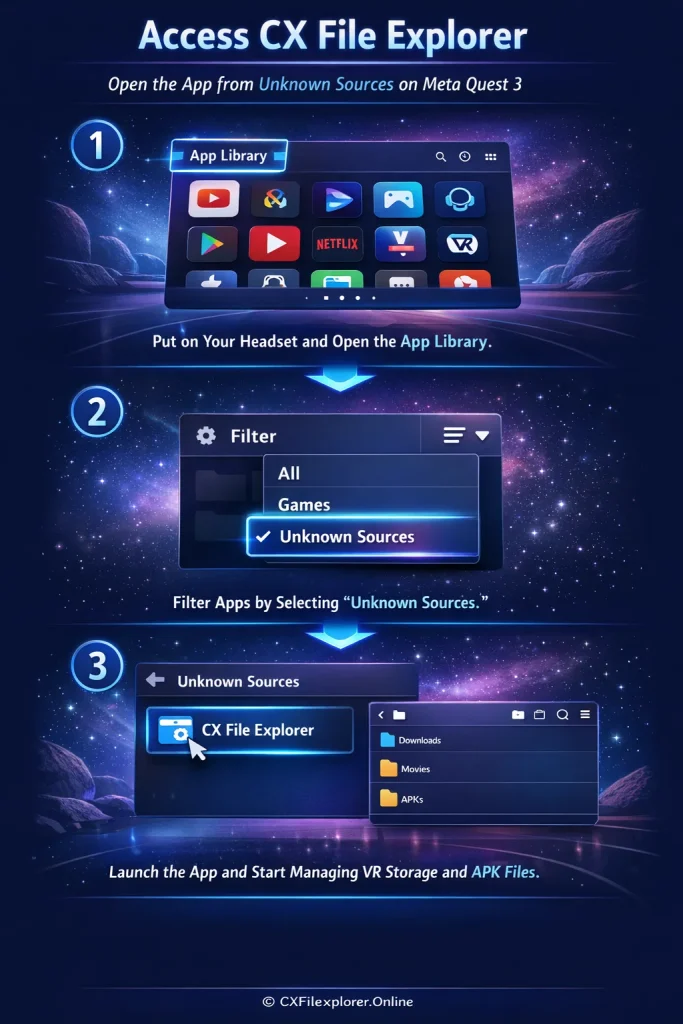
Step 6: Access CX File Explorer from Unknown Sources
- Put on your headset and open the App Library.
- Filter apps by selecting Unknown Sources.
- Launch CX File Explorer and start managing your VR storage, APK files and media content easily.
This method follows safe Android-based VR installation practices, ensures compatibility and keeps your headset secure while expanding its functionality.
How to Use CX File Explorer on Meta Quest 3
Managing Files Inside VR
- Open CX File Explorer from Unknown Sources on your Meta Quest 3.
- Browse through internal storage, Downloads folder or app directories just like you would on an Android phone.
- Use simple options like copy, move, rename, delete or compress files to organize your VR storage.
- Check the storage analysis feature to quickly find large files and free up space.
Transferring Files Between PC and Quest 3
- Connect your headset to a computer using a USB-C cable and allow file access permission.
- Open CX File Explorer and enable network access or FTP transfer if you prefer wireless sharing.
- Drag and drop media files APKs or documents between your PC and Quest storage.
- Always confirm files are fully transferred to avoid corrupted data issues.
Installing APK Files Using CX File Explorer
- Download the desired APK file directly to your headset storage.
- Locate the file inside CX File Explorer using the built-in search option.
- Tap the APK and select Install to begin the APK installation process.
- After installation, check the app inside Unknown Sources and test it to ensure it runs smoothly.
These steps reflect real-world Android-based VR file management practices, helping you safely control files, transfers and third-party apps on your headset without confusion.
Is It Safe to Install CX File Explorer on Meta Quest 3?
Yes, installing CX File Explorer on Meta Quest 3 is generally safe if you follow proper security considerations. Since the headset runs on an Android-based system, the real risk comes from downloading APKs from untrusted sources. Always use a reliable website, verify the APK file integrity and avoid modified or unknown versions. By following smart APK installation best practices, such as enabling Developer Mode responsibly and limiting unnecessary app permissions, you can protect your VR device security while expanding its functionality safely.
Benefits of Using CX File Explorer on Meta Quest 3
Using CX File Explorer on Meta Quest 3 gives you better file management in VR allowing you to organize downloads, media and app folders without confusion. It makes easy APK installation possible directly inside the headset, so you don’t always need a computer for basic tasks. You also get smooth network file sharing, which helps transfer files between your PC and headset using FTP or local Wi-Fi connections. For anyone who regularly sideloads apps or manages VR storage, it simply makes the entire experience faster, cleaner and more efficient.
Frequently Asked Questions (FAQs)
Read Also: CX File Explorer FAQs
Conclusion
Installing CX File Explorer on Meta Quest 3 opens the door to better VR file management, smoother APK sideloading and smarter storage control. In this guide, we covered enabling Developer Mode, using tools like SideQuest and safely completing the APK installation process. You also learned how to manage files inside VR, transfer data between PC and headset and follow essential security best practices. Step by step, everything becomes simple and practical.
From my experience working with Android-based VR devices adding a reliable file manager app for Meta Quest 3 is a smart move for users who want more flexibility. It’s safe when done correctly and incredibly useful for organizing apps, media and downloads. Still unsure about something? Drop a comment, share your experience or reach out to the official support team if you need technical help. The goal is simple: more control, less frustration and a smoother VR experience overall.
See Comparison: Cx File Explorer vs. Solid Explorer